
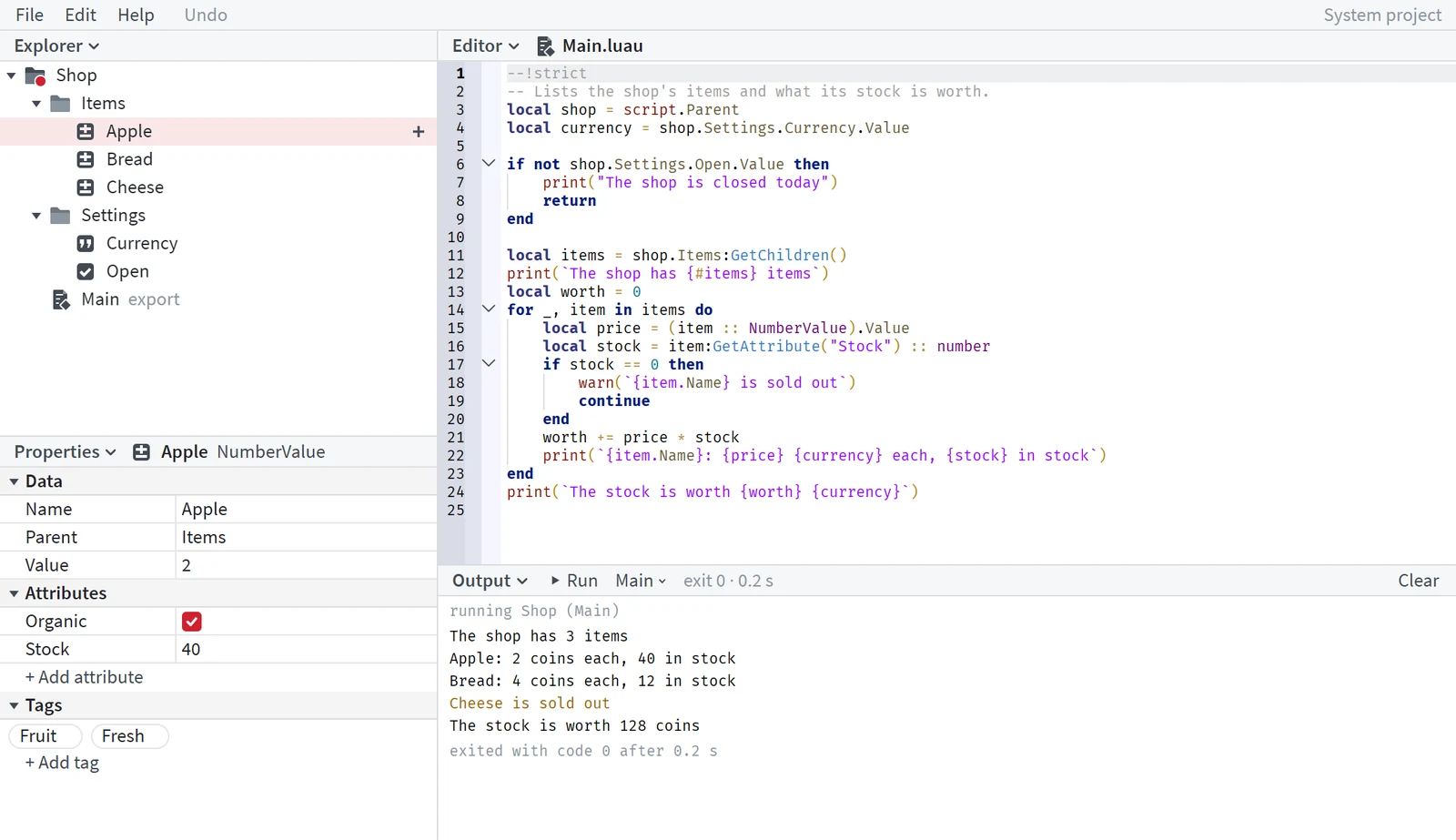
The window
Open a project in its own window to browse, edit, run and take back any change.
shot open Demo.sspopens the project in an app window of Microsoft Edge, with a profile of its own.
- Run it again with the window open: that window comes forward.
- Without Edge,
shot opensays so and names the address to open in any browser. shot open Demo.ssp --urlprints that address and opens nothing.
While the window is open, the project stays open. Changes made in the window and by shot commands show in both at once.
The menus
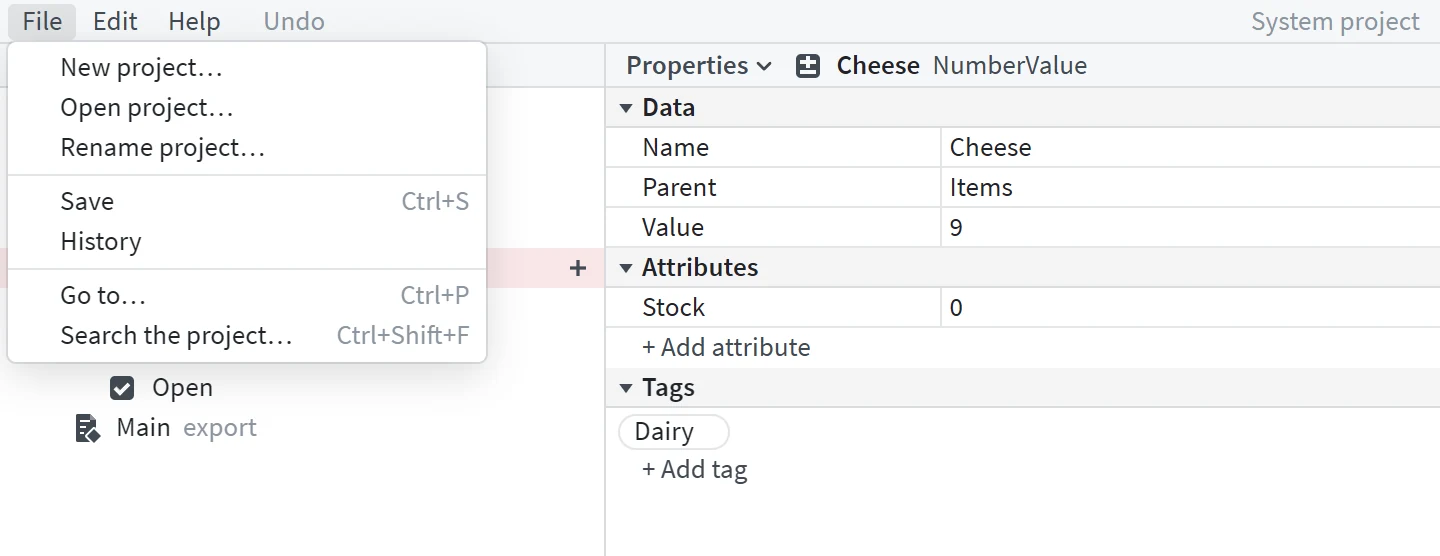
Above the panes: File, Edit and Help, an Undo button and the project's kind. Esc or a click outside closes a menu.
File   New project...                         a new project, opened in this window
       Open project...                        another project, opened in this window
       Rename project...                      a new name for this project's file
       Save                    Ctrl+S         every open script, then the file, with a dated copy (SAVING)
       History                                the History pane (HISTORY)
       Go to...                Ctrl+P         an action, a script or an object, by name
       Search the project...   Ctrl+Shift+F   every line holding the text
Edit   Undo                    Ctrl+Z         named after the step it takes back, and who made it
       Redo                    Ctrl+Y         the same, for redo
Help ShotScript docs, Getting started, The window, Running a project: these pages, in your browser- New project asks for a name (letters, digits and _, starting with a letter, at most 60), a kind (System, Generic or Roblox) and a folder's full path. A bad or taken name, or a missing folder, is refused under the fields; after a taken name, OK opens that project instead.
- Open project lists Recent (newest first) and the other project files In this folder. Click one, or type a project file's full path.
- Both save the Editor's text, then show the other project in this window.
- Rename project renames the file and its dated copies, but not while the program runs. Renaming the root in the Explorer or in Properties does the same.
- An older project file, <Name>.shotsystem, opens with a bar offering Save as <Name>.ssp or Keep .shotsystem.
The panes
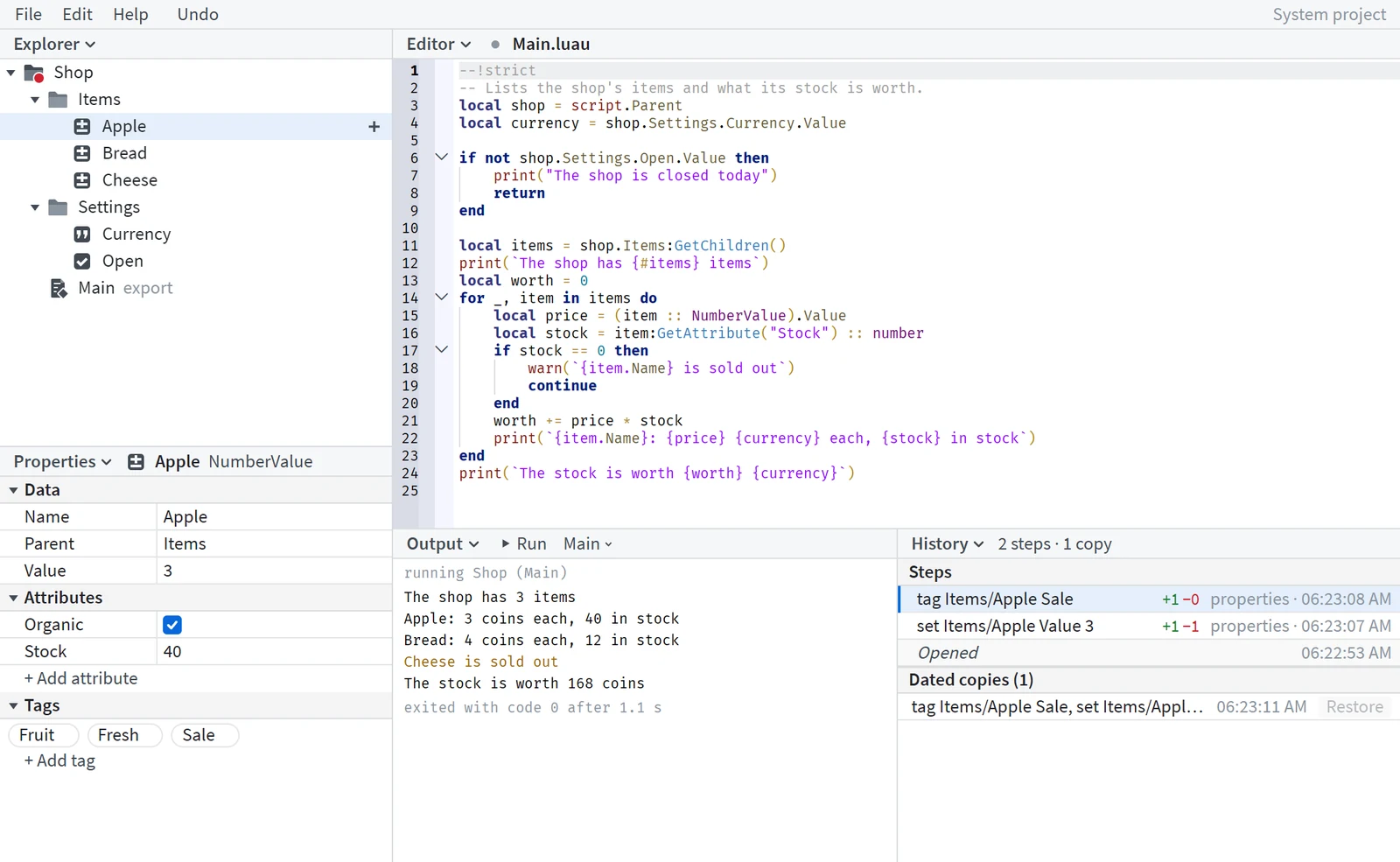
Explorerthe project's treePropertiesthe selection's properties, attributes and tags, edited in placeEditorscripts, checked as you typeOutputruns (RUNNING)Historythe project's steps and dated copies (HISTORY)Problemsevery error and warning in the project, by file; a click opens the line
History and Problems start closed, and each opens in a pane of its own. The window's title counts the problems.
A pane's name, or a right-click on its header, opens its menu:
Split left and right
Split top and bottom
Swap with                 another pane, picked by name
Maximize / Restore        Ctrl+Space
Explorer ... Problems     what this pane shows (the current one ticked)
Reset layout
Splitting History or Problems gives an Editor beside it. With the mouse:
Drag a divider | resize |
Drag a corner inward | split the pane |
Drag a corner outward | join the pane with its neighbour |
Ctrl and a corner drag | swap two panes |
Esc cancels a drag. The layout and the Editor's text size are kept, for every project.
Keys
Ctrl+S | save (SAVING) |
Ctrl+Z | undo the project's last step (HISTORY) |
Ctrl+Y, Ctrl+Shift+Z | redo it |
Ctrl+P | go to an action, a script or an object |
Ctrl+Shift+F | search every file of the project |
F5, Shift+F5 | run, stop, while there is an Output pane (RUNNING) |
F8, Shift+F8 | the next, the previous problem |
Ctrl+Space | maximize or restore the pane under the pointer |
Ctrl+= / Ctrl+- / Ctrl+0 | the Editor's text larger, smaller, as it was; Ctrl and the wheel too |
Esc | close a menu, cancel a drag |
In the Explorer:
Ctrl+I | insert: pick what, then type its name; beside a script, inside a folder (the + on a row too) |
F2 | rename |
Delete | delete |
Enter | open a script, or expand or collapse |
arrow keys | move the selection; right and left open and close |
Ctrl+C, Ctrl+X, Ctrl+V | copy, cut, paste |
Ctrl+D | duplicate |
Ctrl+Alt+G | group as a Folder |
Ctrl+click, Shift+click | pick several |
In the Editor:
Ctrl+I | completions (the list also opens as you type) |
Alt+F12 | go to definition |
Shift+Alt+F12 | find usages |
F2 | rename a member across the .shot scripts, as one step |
Outside a text field, Ctrl+Z and Ctrl+Y work on the project, whoever made the last step; inside a box, on the box.
The editor's steps
Typing goes into the project as one step, edit <file> by editor, when it ends: 2 seconds without a key, the caret on another line, the Editor left, Run or Ctrl+S.
Ctrl+Z in the Editor takes back a whole typed change: in the project too if nothing changed since, else as a new step. Ctrl+Y works the same way.
If the script changed elsewhere meanwhile, a bar above it says who changed it, with Load theirs and Save over it.
Saving
The file is written 1.5 seconds after every change. A save also keeps a dated copy. Ctrl+S and File > Save first put the Editor's text in, then show what shot save prints:
saved Demo.ssp; dated copy Demo_2026-10-20_01-21-43Nothing new since the last copy:
saved Demo.ssp; no change since the last dated copyshot save itself doesn't wait for the Editor: typing goes in when it ends.
A script that couldn't go in turns the message red until clicked: "<file> isn't saved: <why>", then "Everything else:" and the save's message.
Copies go in Demo.history beside the file, one also every 10 minutes while changes come in. All of the last 24 hours are kept, then one a day. shot history lists them with their size and the steps since the copy before (its first line, naming the folder, left out):
Demo_2026-10-20_01-21-48 | 0 KB write Helper.luau |
Demo_2026-10-20_01-21-43 | 0 KB as opened |
History
Every change is one step, from the window or a command. The pane's head counts them: "5 steps · 1 copy".
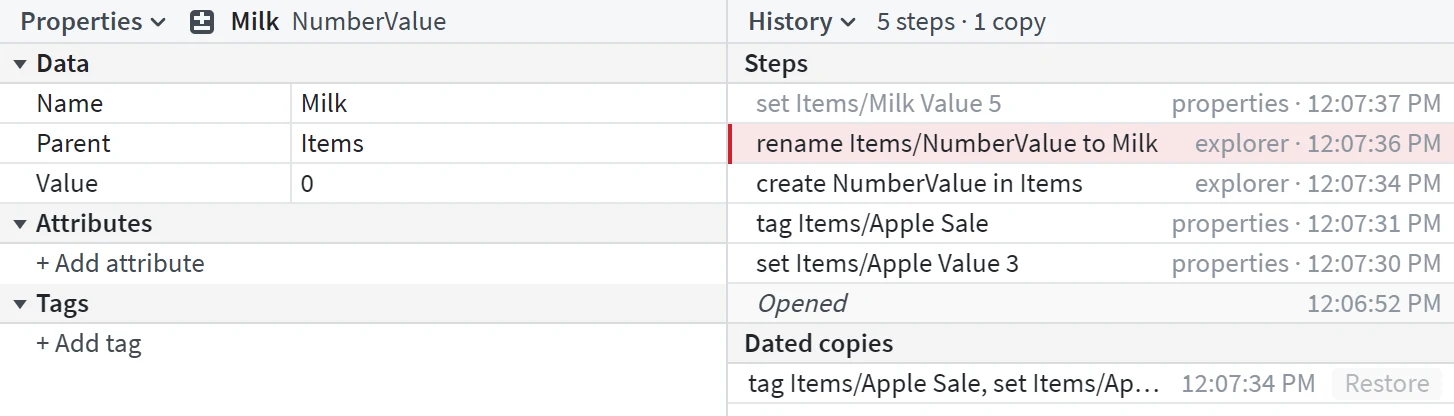
- Steps, newest first: label, who (cli, editor, explorer, properties, history, output) and time. Undone steps sit above the current one, greyed. Opened and Opened again mark each opening.
- A click previews a step: what going there changes, line by line. Its button, Go back to this step (or Go forward to this step), goes there; Esc closes. Going back is one new step that Ctrl+Z takes back. If the project changed meanwhile, the pane refuses and reads it again.
- The last 500 steps are kept (20 MB at most), and the pane shows the newest 200. Once older ones are dropped, the list ends "Older steps aren't kept (the last 500 are)."
- Dated copies have Restore (one step); a click shows what changed since, with Restore this file.
- File > History opens the pane; a script's right-click Show History shows only that script's steps.
It rereads after every change, a save, and every 20 seconds.
Steps outlast closing the project, minus undone ones not redone, but undo and redo reach only those made since it was opened. Going back to an older step in the pane still puts back the text of every file changed since, as one new step; properties and tags come back only over steps made since it was opened.
Make this the export
Right-click a script in the Explorer (a .shot file, a folder module or a .luau file, not a Types.shot): Make this the export is the first item.
It points the header's export line at the script's path from the root, names joined by dots, as one step; the window says what the export was. On Helper.luau beside Main.shot, shot show .shotsystem --project Demo.ssp then prints:
.shotsystem  lines 1-3
   1  shotsystem 1
   2  kind System
   3  export Helper
and shot map --project Demo.ssp:
export Helper: a library, Helper.luauA name with a character other than letters, digits and _, or two things on the way with one name, can't be an export path; the window says why. The export's row says "export" in grey, and it heads the Output's Run menu (One-file projects, THE EXPORT).
Running a project
The Output pane runs the project as the window holds it, in a process of its own.
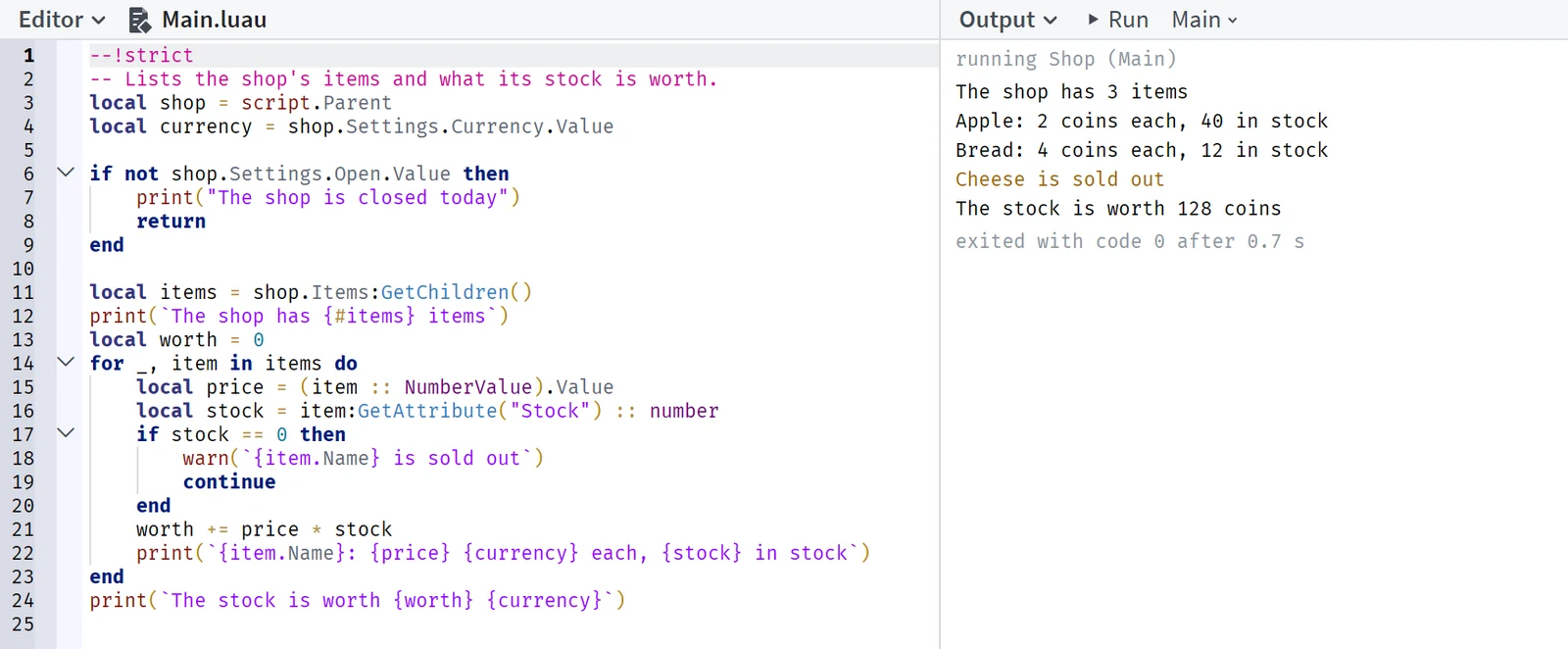
- Run (F5) puts the Editor's text in, then runs, never writing the file. Before the first run, the Output says what Run runs.
- After Insert object makes a Script, the Output offers "Make <Name> the export" until taken, closed or a run starts.
- The menu beside Run picks what Run and F5 run: the export, a scenario or All scenarios.
- Stop (Shift+F5) ends the program and all it started; Run during a run restarts it.
- While it runs, the title is "<Name> - Running", and "edited since this run started" shows after a change.
- An error's file and line opens the Editor there. A run keeps its last 5000 lines; Clear empties the pane.
From a command line: shot run Demo.ssp (see Running a project).