
Docks
ShotScript Editor's Explorer, Properties, Problems and Docs are real Studio docks, and they stay up while you play.
Each one tabs, docks and floats like Studio's own panels and follows Studio's theme. A dock opens where Studio would put it, and you can drag it into any dock, onto another panel's tabs, or out on its own. Close a floating dock with its x and open it again, and it floats where it was. A docked one comes back to the side of Studio it was docked on. The Shot tab on Studio's ribbon opens each one (see Install).
ShotScript Explorer, Problems and ShotScript Properties dock as Studio starts, with ShotScript Explorer already filled.
If Studio starts before ShotScript Editor, ShotScript Explorer, Problems and ShotScript Properties each show once.
A Studio you close and open again gets ShotScript Editor's docks, even when it was busy opening its place.
If you close Studio with docks floating and leave without keeping your changes, Studio exits and no dock floats back.
While Studio closes, no ShotScript Editor dock shows or floats.
After ShotScript Editor updates, a Studio still running the version before shows its place's name, then "Restart this Studio to finish the update", with a warning icon, at the top of ShotScript Explorer, ShotScript Properties and Problems.
On Studio's start page, ShotScript Explorer waits at its column, and goes back into its tab when Studio's Explorer shows.
With ShotScript Command Line floating and Problems a tab in its window, Studio's start page keeps its room.
Docks that share tabs, such as ShotScript Explorer and ShotScript Properties, keep the order you left them in, after you hide and show one and after Studio starts again.
A dock you put beside the middle of the window comes back on that side when you reopen the place, never across the top.
A dock you open where there is little room never changes the size it comes back at.
Problems, closed and opened again from its button, comes back at the width it had.
Explorer
The place's tree, with Studio's selection.
ShotScript Explorer shows the place as Studio's Explorer does, with Studio's class icons. There is one selection, Studio's: a pick in ShotScript Explorer selects in Studio, and a pick in Studio or its 3D view shows in ShotScript Explorer, which opens the tree and scrolls to it.

- Delete, duplicate, cut, copy, paste, paste into, group, ungroup, drag to a new parent and insert, each done the way Studio's Explorer does it and each one undo step.
- A cut or a delete keeps every script it takes out as a file in a Backups folder in ShotScript Editor's local app data, so a second cut never loses the first.
- Insert Object starts each new object with Studio's own defaults.
- The row menu has zoom to, write the selection to a file, copy path, Solid Modeling's union, negate, separate and intersect, Group as Folder, help for the class, and Open Docs.
- Archive Selection, in the row menu, writes the selected objects to a file in your archive folder, then deletes them. One Ctrl+Z brings them all back. You set the archive folder in the ShotScript Editor app: its Settings tab has an Archive folder row, with Browse... and Default. It starts with a folder of its own.
- Each place archives into a folder of its own inside the archive folder, named after the place.
- Double-click a script, or press Enter on it, to open it in a ShotScript tab.
- Hover a script's row, or a
 system script's, to see its hover card, the same card a ShotScript tab shows. It never takes the keyboard or the selection.
- Right-click a row and pick Add Note and one of ten colours to put a note on it. Its dot sits right after the row's name: hover the dot to read the note, and right-click it to edit, remove or copy it.
- In a narrow ShotScript Explorer, a name too long for its row is cut short with …, never clipped, and the red !, the note dots and the +N count still sit right after it.
- After Add Note, the Undo item in Studio's Edit menu names what it takes back.
- Copy Notes and Paste Notes in the row menu put one row's notes on every selected object. Notes are kept in the place, and each change is one undo step.
- Divider above and Divider below, in the row menu, draw a line across the tree above or below the selected rows, to split a long list into groups. Pick it again to take the line off. Dividers are kept in the place, and each change is one undo step.
- F2 on a pinned row, and the row menu's Rename, open its rename box over that row.
- A row you pin to the top of ShotScript Explorer, where the services sit, shows its name upright, in the same text as every other row.
- Drag a row onto a pinned folder, such as Globals, and the drop band shows wherever the pointer is on that row. Let go, and the row moves in.
- After ShotScript Editor restarts, a pick that sits under a pinned row is lit there again.
- Your pick in ShotScript Explorer stays when ShotScript Editor updates itself.
- A rename that Studio refuses goes back to the old name.
- Filter the tree by a property or a tag, to see only the objects that hold it.
- A move marks the place as changed, so Studio asks about it when you close.
ShotScript in the tree
Make, mark and compile ShotScript scripts from ShotScript Explorer.
ShotScript Explorer knows ShotScript scripts. Each one shows in its side's colour, purple for shared, grey for server and blue for client, so it stands apart from plain Luau.
- A ShotScript script that doesn't compile shows its name in red, and a red ! marks each folder above it, so a closed folder still shows where it is. Hover the name to read the error, and double-click it to open the script at that line. The red goes as soon as the script compiles.
- Close that script and double-click it again, and it opens with the caret and scroll where you left them. Only its first open in a Studio goes to the error's line.
- A script refused for a missing
asyncis marked as not compiled in ShotScript Explorer and in Problems, as one with a syntax error is, and the mark goes onceasyncis written. - Insert Object can make each ShotScript kind a place takes:
 System Script,
 Module,
 Class,
 Interface, and the server and client kinds. A
 Server Script or
 Client Script takes its side from its RunContext.
- Each new script starts with a short ShotScript text written for its name. If that name is taken, it gets a 2, a 3 and so on.
Mark as ShotScript turns plain scripts into ShotScript scripts in one undo step.
- Only a ModuleScript gets a system line: under a system script it gets
system script.Parent, which joins that system; a script on its own getssystem script. A Script or LocalScript never gets one. - It renames Studio's
moduleto the script's name. - Nothing is made beside it.
- After Mark as ShotScript and a Ctrl+Z, Mark as ShotScript works again, and Problems drops the old problems.
- That Ctrl+Z also clears the red mark from the folders above those scripts.
A new ModuleScript named Kart, marked, reads:
system script
local Kart = {}

return Kart
Compile Group, on one Folder, Model or ShotScript script, compiles every ShotScript script in it and every script that requires one of them directly. It is one undo step, named Compile group and the group's name, and Studio's Output gets a line that says what it did.
Make Layout and Copy Layout follow Compile Group in the row menu.
- Make Layout writes a layout of the picked objects, and the open rows under them, into the ShotScript tab in front, as one undo step, and opens the script at it.
- Copy Layout puts the same layout on the clipboard and writes nothing.
- During Play only Copy Layout works. Make Layout is greyed.
Disable a script
Keep a half-finished script from stopping Play.
Right-click a Shot Script or a system script in ShotScript Explorer and pick Disable. Its row and every Shot Script under it turn grey. It is one undo step.
- Play skips compiling a disabled script, so a system you're still writing doesn't stop Play.
- In Play, anything that requires a disabled script errors: "<Name> is disabled", with that script's name.
- A new Shot Script you add under a disabled system is grey and disabled at once.
- Under a disabled system its Folders grey too, and so do its Shot Scripts at any depth. They stay off and don't run, even after you edit one. Models, Configurations, values and plain Luau scripts there stay as they are, and a Folder outside a disabled system never greys.
- A disabled system stays disabled after Play and Stop: it is still grey, with Enable on its menu, and so are the scripts under it.
- Pick Enable to turn it back on. The next Play compiles it again and shows its errors.
Properties
Every property of the selection, in Studio's order.
ShotScript Properties lists the same rows as Studio's Properties, in Studio's categories and order, and hides what Studio hides.

- Pick several objects to see what they share. A row whose values differ shows as mixed, and a set changes every pick.
- Set one part of a vector, a CFrame or a UDim2 across several objects, and each keeps its other parts.
- BrickColor by name, CFrame as position and rotation in degrees, Enum rows as a list of options, and Origin as the pivot.
- The colour picker and the sequence editor change the object as you drag. Esc puts it back.
- Instance rows take a pick from the tree or a click in the 3D view.
- Asset ids take a full id or bare digits.
- A Sound's id has a Preview that plays the sound without adding anything to the place.
- CustomPhysicalProperties has Studio's checkbox and fields.
- Add and remove tags, with the place's tags in the "+" list, and set, rename and remove attributes.
- A ShotScript script has two properties of its own here: Global, which makes a system script's system a Global, and on a ModuleScript, RunContext, its side: Client, Server, or none for shared code.
- Each set is one undo step, named after the property, as in Studio.
Problems
Every script's problems, in Studio's layout.
Problems looks like Studio's Script Analysis: four filter buttons with their counts, Display only current script, and one bold row per script with its problems under it.

- Click a problem to open its script in a ShotScript tab at that line.
- A fifth button counts ShotScript's own rules, which Studio's checker doesn't know.
- When a script is deleted, its rows go. An undo that brings it back brings them back.
- Rename a folder, and Problems keeps the scripts in it and their rows.
- While one statement of a ShotScript script doesn't parse, the rest of the script keeps its checks and rows, as a Luau script does, and the broken statement shows its one syntax error.
- A menu picks the type checker for the place, new or old. It starts from the place's own setting, and a pick checks Problems and the open tabs again.
Every old form is a red row that names its new form, with its fix on the row.
- A kind of row with two or more fixes offers Fix all in the place, which makes all of them at once.
- Fix all runs only when you press it.
- On Write async rows, Fix all in the place writes each one, and a row it skips says why on hover.
- Fix all's Write async makes a whole chain of overrides async in one press: the method and each override of it in other scripts, so the code compiles. A script that changed since its last check gets none of that fix, and the row says why.
- A row's fix Set RunContext to Server sets the script's RunContext, and Ctrl+Z takes it back.
Types in Editor switches one place to keep its types in the editor only (see ShotScript in a place).
- A switched place's compiled Luau keeps your text byte for byte, drops every type the compile added and starts --!nocheck. ShotScript stays strict in the editor.
- The switch is one Studio step, and one Ctrl+Z takes it back.
Docs
A page for each class, each module and each type.
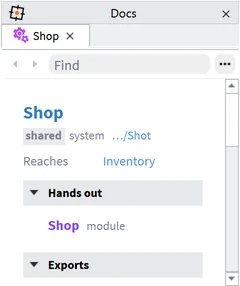
Docs keeps the page it shows when you pick another script in ShotScript Explorer or bring another tab to the front. A page opens from a link, a hover card, Open Docs or Open this script's docs, and while Docs has no page open, it shows the page of the script you select. A page is for a class, a ModuleScript or a ShotScript script, with its members, a sidebar and links to other pages. A type has its own page too, with its doc, its own fields and their docs, how many places use it ("Used in 1 place."), and a From part that folds, for the fields it gets from the type it extends. Each page opens in its own tab, follows the place as it changes, and closes when its script is deleted. If a place can't be read, the page says why.
- Click a member's name to open its script at that line.
- On a type's page too, a member's name opens the line that declares it. An inherited member that overrides one from a type further up stays under its From bar, and hovering its code names that type: on PartyLamp's page, FlickerLamp's Switch stays under From FlickerLamp, and its hover says "Overrides Lamp".
- A page's member rows show Studio's cube for data, the moving cube for functions and, since 1.53, the lightning for events.
- A field typed as a function is a function, so its row shows the moving cube.
- A method's signature never shows
self, and Copy signature leaves it out too. - A function's parameters show one per line, with the colons in one column and each parameter's doc beside it.
- Every doc in a bar starts at the same spot.
- Colons line up the way ShotScript Editor lines them up: only the single longest name stands apart, and only when it is more than 12 characters longer than the next. A row that fits only without its padding drops it, so a type never hangs at the end of a line.
- A short function with no parameter docs stays on one line.
- A default written over several lines, such as a table, shows on its row as
{...}ortable.freeze({...}), never as a bare= {. - Docs sit in a column on the right, which starts at the same spot all down the page. A row too long for it has its doc on the line under it. When Docs is narrower than 480 pixels, each doc goes under its row instead, and the page never scrolls sideways.
- One long field never pushes a record's docs to the right: that field's own doc goes under it.
- A function with a long doc lists its parameters right under its name, and the doc goes under its closing line, in line with the parameters. A short doc that fits stays beside the name.
- A function's return type that wraps continues under its parameters.
- An empty scope shows no bar, no arrow and no sidebar row.
- A row too wide to line up with the others sits tight instead.
- In a narrow Docs panel, only a parameter or field too long for its line puts its
: typeunder its name. - A function's first parameter, or a record's first field, sits on the line right under its head.
- In a narrow Docs panel, an
=or= {never leaves its name's line. - Under 480 pixels wide, Docs still lines up the
:of a record's fields wherever the padded rows fit. - In a very narrow Docs, titles, rows and bar heads stay on one line, cut short with …, and the page never scrolls sideways.
- A page title that starts with an emoji, a flag or an accented letter shows it whole.
- A method's overloads show as separate rows, and each overload's doc starts with a dim "overload ·", with no tag column.
- All the overloads of one name share one colon column.
- Every dim "overload" tag on a page starts at the docs column, beside its row or on the line under it.
- A record type shows as a field tree.
- A record's fields start where a function's parameters do, one per line at the same spacing, with no gaps.
- A record inside a record shows as a field tree, each field with its doc on its own row, and no name is split inside a word.
- Every record closes with
}on its own line. - A union's head doc leaves no empty line under its head.
- A type union shows its first option on its name's line and each later option on a line of its own, with its
{under the first one's. - A union option too wide for Docs puts one field on each line, with their colons lined up as in a record.
- A
|inside a generic, after a function type's->or inside a quoted option never splits a type into union options. - A long doc on a record's head shows whole under its closing
}. - A doc of several paragraphs shows like any other doc: in the doc ink, beside its row, or under it when Docs is narrow.
- A class's private members sit inside its Private bar.
- A class's Properties and Events share one colon column.
- Each record's fields share a colon column of their own.
- In an overload's head, the as keyword is bold and names stay plain.
- A separator line you type in a braced list shows as a divider on its page.
- A divider shows only where you typed one, as a plain thin line.
- A class with an
__addmetamethod shows anoperator +row. - A set with a doc keeps the doc beside its head and its options under it, and its
=lines up with the other rows of its bar. - A long set shows its options in a grid, and each column takes its own width.
- Chinese, Korean and Japanese options sit in straight columns.
- A long text option is cut short on its one line, keeping its closing quote, and hovering it shows it whole.
- A set's option never breaks across lines: one too wide for its spot is cut short with … instead.
- Every set shows as a grid with no
|between its options, while a type union keeps its|. A set whose options all fit after its=stays on one line. - A Luau script's page says
modulein its header. - A page's header shows the path to its item without saying the page's name twice, and the path always fits.
- Bars and rows keep the order you wrote them in. An overload you wrote apart from the others stays where you wrote it, with its dim "overload" word, and overloads written together still group. A Signal property stays under Events.
- A sidebar row shows its kind word after its name, dim.
- The sidebar lists the page's whole system: the system on top, then each of its scripts in your order, with the page's own script open under it.
- A system's private rows show in the sidebar only while one of its scripts is open in a ShotScript tab.
- Each script's row in the sidebar shows its tab's icon, in the Explorer's own text.
- When Docs is too narrow to show the sidebar beside the page, the sidebar hides.
- When a sidebar row is too narrow, it drops its dim kind word before it cuts the name. Hover it to see both whole.
- On every ShotScript script's page, its use lines come first.
- A scope's page says
scopein its kind line, and its rows sit together in one bar on its page. - A scope's page header puts its name first and
scopeafter it:Tokens<P> scope. - A scope's own page lists its rows under Types.
- The hover card of a name your scripts declare, in a ShotScript tab, has a Docs link. It opens that name's page in Docs, at its member.
- On a Docs page, rest the mouse on the path in the dim line under the title for a tip with the path, its system's counts, such as "6 scripts, 281 lines", and Open with the script's name when the path opens one.
- Rest the mouse on a name on a Docs page to see its hover card.
- A hover card shows what the script says now: edit a type's doc, and its card shows the new text once Docs has the change.
- In a ShotScript tab, Open in DocView in the right-click menu on a type's name opens that type's own page in Docs, for a type another script declares.
- Hovering a type shows its doc, then its own fields, each with its doc under it. A field whose type your scripts declare links to that type. Below a thin rule come the fields it gets from the type it extends, with their docs, under a grey From line that names that type.
- Hovering a class that extends another shows its own members first, then a section for each class it extends. Each member shows its doc, each method its signature, and the constructors get a block of their own. The class's page in Docs shows the same sections.
- A class's hover card, in a ShotScript tab, ShotScript Explorer or Docs, lists fields first, then methods, the public ones first in each. An internal member's icon is darker, and a method that overrides another has a small blue up arrow that opens the one it overrides.
- On a class's page, each run of members it gets from a class it extends sits under a small grey From line that names that class, such as From Walker. Its own members and overrides have none.
- Click a From line to open the page of the class it names.
- Click a link to another page and it opens in the same tab. Ctrl+click or middle-click opens it in a new tab, unless a tab already shows it.
- A page never opens in a second tab: Docs keeps one tab per page. A click on a box in System Map opens one tab, and opening that page again later brings its tab to the front.
- A drag that begins on a link selects text, and the page stays put.
- A type row with an arrow, an alias's row too, opens in place when you click anywhere on it, and shuts on a second click.
- Back and Forward step through the pages a tab has shown, each at the spot you left it: use the mouse's back and forward buttons, Alt+Left and Alt+Right, or Back and Forward in the right-click menu.
- Back after a link to another page brings back the row you were reading, at the same height.
- Open this script's docs shows the page of the script tab in front.
- As the caret moves in the script whose page Docs shows, Docs highlights the member it is in, and scrolls to it when it is out of view. After you scroll the page yourself, it waits two seconds before scrolling it again.
- A system script's page is the page of the script its system line names, with that line at the top.
- A system's page header shows one line: its side (server, client or shared), the word system and its script's path, as in
server system ReplicatedStorage/Shop..shot - A script that declares no item still gets a page: a system script with none reads as its system's page, and a ModuleScript that holds only types or scopes lists them.
- A system's page shows what its system script hands out in one Hands out bar, with its row and its doc.
- Every page with nothing on it, a system's too, says "No members yet."
- The Exports bar lists names only, each with its kind's icon. A click on one scrolls to its row, which flashes once, as every link within a page does.
- Two open tabs with the same name each show a dim word that tells them apart.
- Every Docs tab open when ShotScript Editor updates itself comes back after the update, each with its page, in the same order, the front one in front.
- A plain Script has no page, and Docs says so.
- Find highlights every match on the page in Studio's find colour, and says No matches when nothing is found.
- Press Enter in Find when the page says No matches, and Docs opens the page in its sidebar that has the word, in the same tab, at the word's row with Find's mark on it. When the sidebar holds no other page, Find says No other page has it at once.
- Typing in Find keeps the row you are reading where it is, and clearing Find brings back the row you were on.
- With a Find typed, a link to a private member opens the Private bar to show it, and your Find stays.
- Let go of a floating Docs window over the tab bar and it docks there. It turns see-through while over the drop spot.
- Close a ShotScript dock such as Docs with its x, floating or docked, and it stays closed the next time you open the place.
- Studio's Window menu has Docs under Script, right after Object Browser, ticked while Docs shows, floating or docked. Pick it to hide Docs, and again to bring it back where it was.
- Ctrl+wheel, Ctrl+=, Ctrl+- and Ctrl+0 zoom Docs by the same amounts as Studio's script editor, and every column stays lined up at each zoom.
- A long page, even one of 1,600 lines, opens in well under a second.
- Folding or unfolding a section bar, even on a page of 1,600 lines, takes well under a second, and every row comes back in its place.
- The tabs, section bars and menus in Docs use Studio's own fonts, and the sidebar has the Explorer's expand arrows.
- Each section bar on a page, such as Properties or Methods, has the grey band of a category row in Studio's Properties, in the light and the dark theme.
- Docs draws its docs solid, in the ink of Studio's own docs panel, and its code crisp. A client script's Docs tab shows a blue lightning bolt.
- Emoji, symbols, Japanese and Chinese draw from Windows' fallback fonts and line up with the rest of the page.
- A doc in emoji, Japanese or Chinese stays inside its column.
- Code in a doc takes the doc's ink and size, so a doc line with code is no taller than one without.
- A name that starts with an emoji shows whole, with its colon in line with the others.
- Find keeps each field's doc on its row.
More docks
Find in Place, Services, Collision Groups, Place Assets and the ShotScript Command Line.
The Shot tab on Studio's ribbon opens four of them. Services opens from the Settings menu (below).
- Find in Place is Studio's Find in Place (Ctrl+Shift+F) as a dock. It finds in every script as you type, with match case, whole word and regular expressions, its "..." menu holds Replace, and a click on a hit opens its script at that line.
- At 200% display scale, Find in Place floats and drags like the other docks.
- Services ticks which services ShotScript Explorer shows.

- Collision Groups makes, renames and deletes the place's collision groups, ticks which ones collide, puts the selection in a group and selects a group's parts. Default can't be deleted, and each change is one undo step.

- Place Assets lists the assets the place uses, by kind, with how many objects use each one. Click a row to select those objects, or copy its id.

- ShotScript Command Line runs a few lines of ShotScript in Studio, with
computerto reach the files on your computer (see Command Line).

System map
Every system and every use, on one map.
Pick System Map in the Tools menu to open it. It shows every system as a box and every use as an arrow. Boxes, wires and notes stay where you put them.
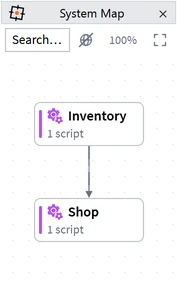
- The map zooms from 0.2 to 2, and Ctrl+0 goes back to 100%.
- Fit shows every box at once, centred, even when that takes a zoom under 20%.
- Select boxes with Ctrl+click, Shift+click or a middle-drag. One drag moves every selected box.
- Each wire glows from its item to its user.
- Drag a cable tie's tail to turn the tie and tighten it.
- Hover a system's box for a bubble with the start of its docs. A click on the box opens the system's page in Docs.
- On a narrow map, the bubble wraps to fit inside the map.
- A click on a box opens Docs at the system's page, even when Docs hasn't been shown since Studio started.
- With System Map docked beside the middle of the window, a click on a box shows Docs where the Docs dock lives, such as under Properties, and the map and your script tabs keep their widths.
- The map's layout is kept for each published place.
- When Studio starts and puts its docks back, System Map docks beside the middle of the window, on the side it was last docked, and stays there.
- Docked at a side of Studio, System Map has a title bar like ShotScript Explorer's, to drag it out by. It is still there after you hide and show System Map, and after Studio starts again.
Settings
The editor's settings, in one menu.
The Settings button on the Shot tab opens ShotScript Settings.
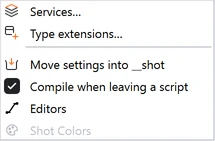
- Services… opens the Services dock, where you pick which services ShotScript Explorer shows.
- Type extensions… opens the place's one script of your own methods on CFrame, parts and other Roblox types, which every script can call. The first pick makes it.
- Move settings into __shot moves the place's settings from older versions of the editor (pins, icons, notes, hidden services, globals, run contexts and classes) onto each instance's own __shot, in one undo step.
- Compile when leaving a script, ticked at first, compiles a ShotScript script when you click away from its tab (see Script tabs). The choice holds in every Studio you open.
- Editors opens the Editors window, which sets which call opens which editor in a tab (see Script tabs).
Play
Studio's own Play, with the editor's docks still up.
Play is Studio's own. ShotScript Editor's docks and tabs stay where they are while you play, and ShotScript Explorer shows the running game too.
- While you play, the server's and the client's trees show in ShotScript Explorer. A pick there selects in that side.
- A double-click in a running tree opens the running copy in Studio's own editor, as Studio's Explorer does. A ShotScript script's running copy opens in its ShotScript tab.
- The windows Play opens get no ShotScript Editor buttons or docks of their own.
- If a ShotScript script doesn't compile when you press Play on Studio's toolbar, F5 or F8, a box titled Compile before Play asks Play anyway? before Play starts. Cancel doesn't start it. Play Here and Run still show the notice after Play starts, with Stop and OK.
- ShotScript Editor has no Output dock. Studio's own Output stays where it is.