

 Mime
Mime ShotScript
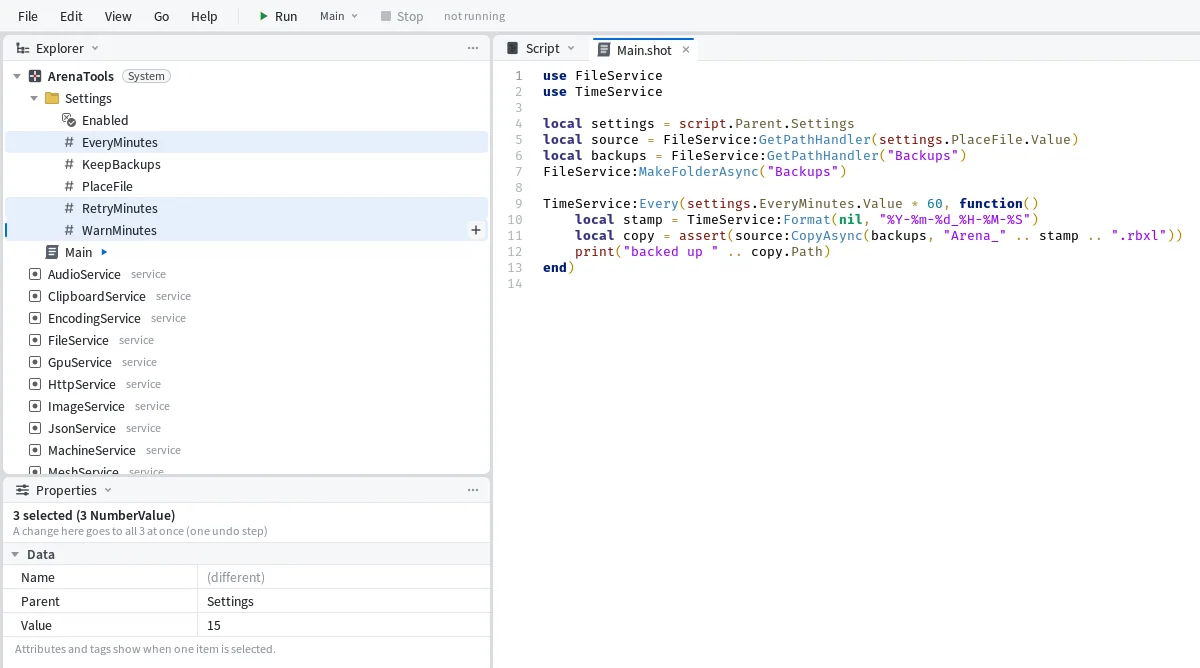
Mime's Explorer and Properties now work like Studio's
In Studio you spend half your day in two panes. The Explorer on the right, Properties under it. Your hands know them better than you do, so we spent the last week and a half making Mime's work the same way, down to the keys.
Everything below was done in one sitting in Mime, on a small System project: a tool that backs up a place file, with a Settings folder of values that its program reads.
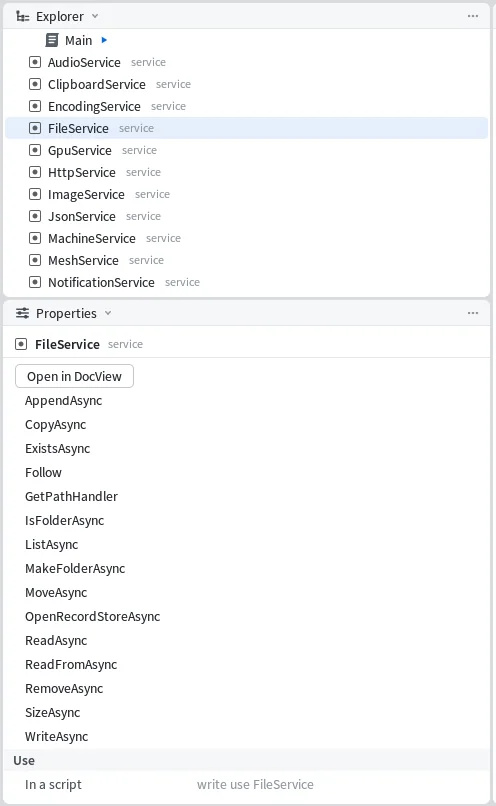
Services at the top
The services sit at the top of the Explorer, like Workspace and Lighting do in Studio. In a System project those are your computer's: FileService, HttpService, ProcessService and the rest. Click one and Properties lists its methods and how to reach it from a script, use FileService. Double-click it and its page opens in DocView, with every method's arguments and what it gives back.

Insert
Ctrl+I opens Insert for the selected row. It lists every class you can create there and has a filter box. On our Settings folder it offered 56 classes, and typing Value cut that to seven.

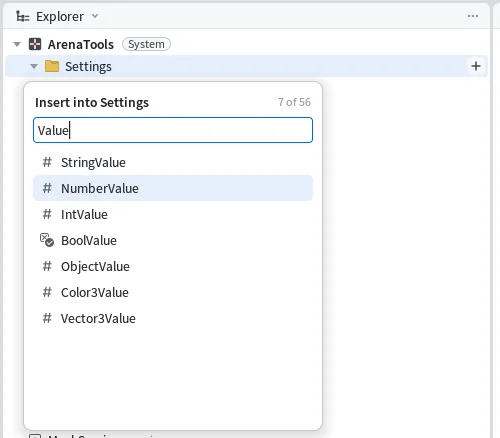
The new object lands in the folder, selected, with its class as its name. F2 renames it. You can press Enter, or just click somewhere else, and the rename keeps what you typed. That second one is how Studio does it.
Several at once
Ctrl+click picks more than one. Properties then shows what they have in common, and "(different)" where they don't match. We selected three NumberValues, typed 15 into Value, and the status bar said
set Value on 3 items to 15That's one step, so one Ctrl+Z puts all three back. Pick objects of different classes and you get only what they share, so a BoolValue, an IntValue and a NumberValue together come down to Name and Parent.
Right-click the selection and the menu has the rest, with Studio's keys.

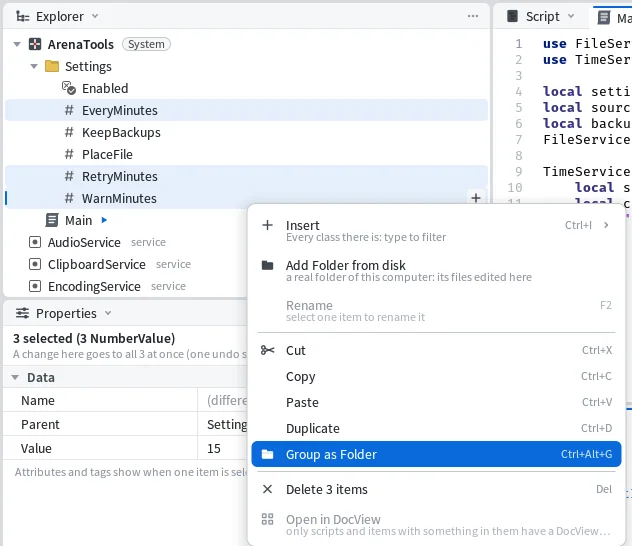
- Ctrl+X, Ctrl+C, Ctrl+V
- cut, copy, paste
- CtrlD
- duplicate beside the original
- CtrlAltG
- group into a new Folder
- Del
- delete, with the count in the menu
- F2
- rename
Copy says where it can go: "copied 2 items to the clipboard: Ctrl+V pastes them here or in another Mime window". A duplicate gets a number on the end, so a copy of RetryMinutes comes out as RetryMinutes2.
Moving something breaks a script, and you see it
This is where Mime goes past Studio. Our program reads its settings by path:
local settings = script.Parent.Settings
TimeService:Every(settings.EveryMinutes.Value * 60, function()
We grouped the three minute values into a folder and called it Timers. The program didn't change, but its path did, and line 9 went red before we touched the script.

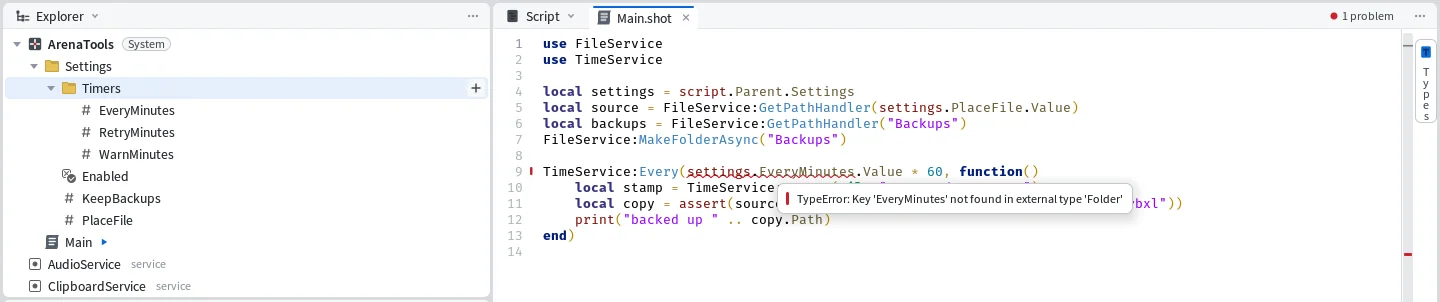
Mime checks paths like this one against the objects that are really in the project. In Studio, moving a value into a folder is fine until the script that reads it runs. Here the window says "1 problem" the moment the folder exists. We pressed Ctrl+Z twice, once for the rename and once for the group, the values went back to Settings, and the problem went away with them.
A folder from your computer
The same menu has Add Folder from disk. It puts a real folder from your computer in the Explorer, and its files open in the Editor, where you can edit, rename and move them without leaving Mime. For a tool like ours, that's the folder of place files it backs up.
Copy and paste between Mime and Studio is being built now, both ways, and so are Move, Scale and Rotate on Ctrl+1 to Ctrl+4 in the Roblox View.