

 Mime
Mime ShotScript
Mime is an app of its own
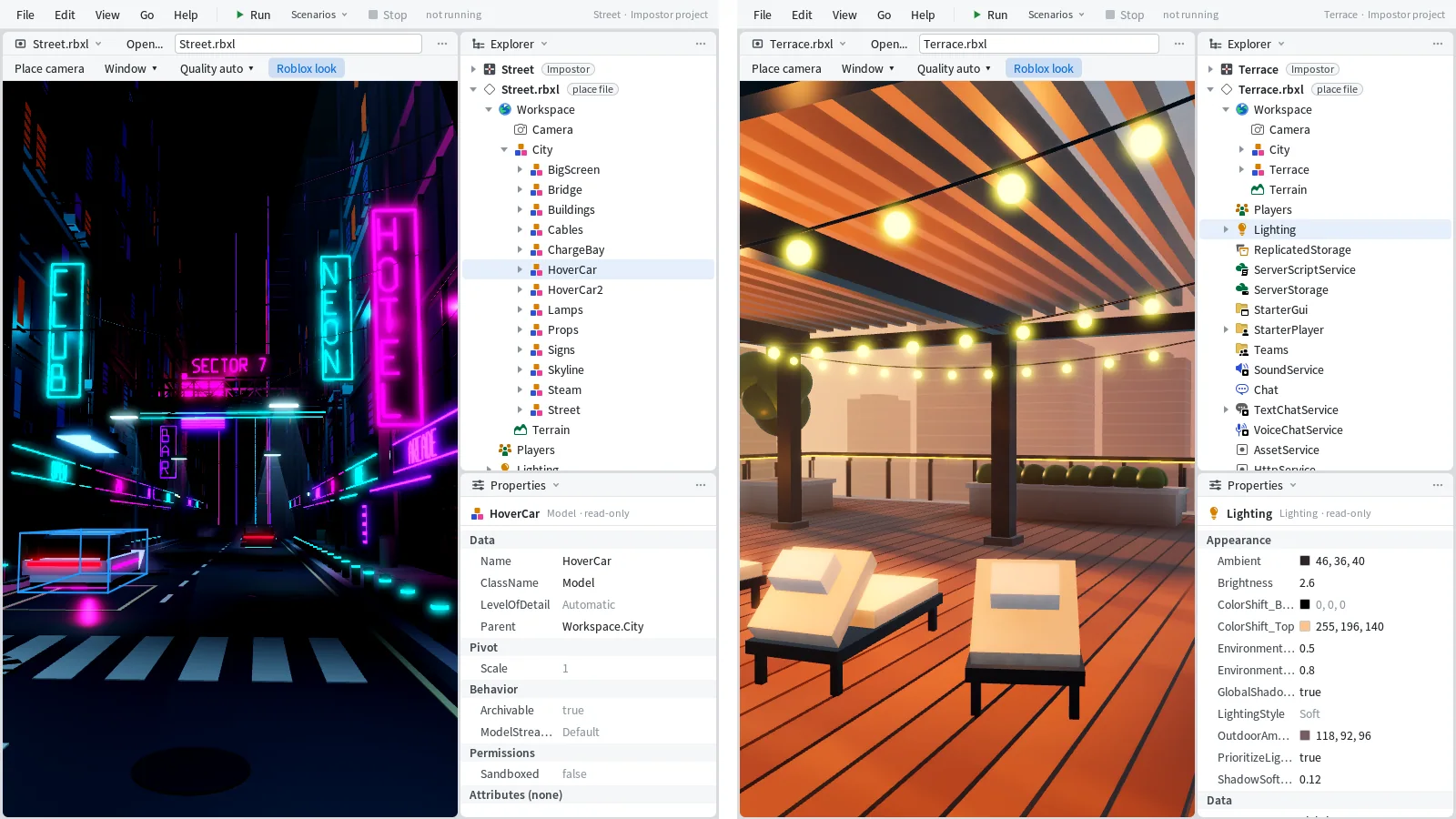
Mime is a desktop app now. You start it like any other program on your computer, it gets its own icon in the taskbar, and each window holds one project. Two projects means two windows.
If you'd rather stay inside Studio, the window that docks there hasn't gone anywhere.
The start page
With no project open, Mime shows its start page. It has two buttons, New project and Open project, and under them the projects you had open lately, newest first.

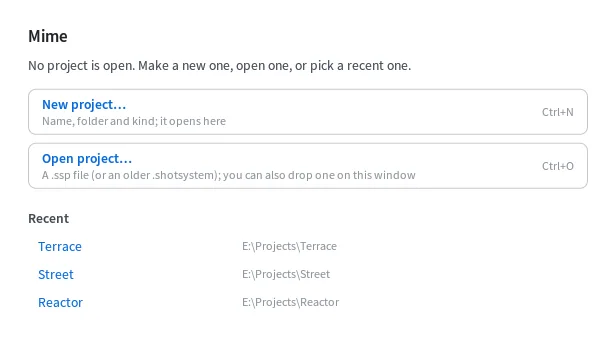
New project asks for a name, a folder and a kind, makes the project and opens it in that window. Open project takes a .ssp file, or one of the older .shotsystem projects. A click on a recent one opens it again.
There are two more ways in. File > Open project (Ctrl+O) works from anywhere in the window, and File > Open recent has the same list as the start page. Or drag a project file out of a folder and drop it on the window. On two small test projects, Arena and Lobby, we opened Lobby from the start page and then dropped Arena's file on the same window. Each switch took under a second.
One project to a window
Opening a project in a window that already has one swaps it. Mime saves the project you had, closes it and opens the new one in the same window, and your panes stay where you put them. Close project in the File menu takes you back to the start page.
You don't have to remember to save, either. Mime saves a moment after every change, and Ctrl+S saves right away.
For a second project at the same time, start Mime again. Each window's title names its project, "Arena - Mime" and "Lobby - Mime", so the taskbar tells you which is which.
Copy and paste work between the windows. We selected a Settings folder in Arena and pressed Ctrl+C, and the status bar said:
copied 1 item to the clipboard: Ctrl+V pastes it here or in another Mime windowCtrl+V in the Lobby window pasted the folder with the number value inside it still set to 90, and that window's status bar said pasted Settings into Lobby.
The same project can be open in two windows, and they stay in step. We renamed the folder in one and the new name showed in the other straight away. Then Ctrl+Z in the second window took the rename back, because both windows share the project's undo history. Ctrl+Z in either one undoes the last step, whichever window made it.
Changes from the command line show up the same way. With Arena open, we ran this in a terminal:
shot create Folder . Settings --project Arena.sspThe folder appeared in Mime's Explorer without us touching the window.
Next to Studio
Most of this will feel familiar if you know Studio. Studio gives each place its own window and lists your recent places when you start it, and you can copy a part in one place and paste it into another. Mime does the same with projects.
The big difference is that Mime doesn't need Studio running. It opens a project on its own, and a Roblox place you've imported opens as a project too, with its world drawn in the Roblox View. Our article on opening Roblox places in Mime walks through that.
When you're in Studio and want ShotScript's panes beside your game, the docked window is still there. Explorer, Properties and the Editor sit together in one window next to your place, the same as before.
About shot open
shot open Arena.ssp doesn't start Mime. It opens the project in a Microsoft Edge app window, the browser version of the project window, as it did before. shot open Arena.ssp --url prints that window's address and opens nothing. To work on a project in Mime, open it from Mime itself.