


 Mime
Mime ShotScript
Open a Roblox place in Mime, then send it back
This week Mime learned to open a whole Roblox place. Point one command at a .rbxl file and you get a project you can fly around in and edit. When you're done, one more command writes it back out as a place file, and Studio opens it like any other.
That street is an ordinary place file. We built it out of plain parts in Studio's materials, saved it as a .rbxl and brought it in with the command below. The night, the haze and the glow come from the place's own lights, Neon parts and Lighting settings.
One command in
shot import Game.rbxlYou get two things side by side. Game.ssp is the project, a single text file. Game.world is a folder that holds the Workspace, one .rbxm file for each Model or part at its top level, plus the Terrain.
We like the text file most. Every service in the place is written out as lines you can read, so you can open a project in any text editor and see what a place is set to without starting Studio. This is part of Lighting from a fresh Baseplate:
Lighting Lighting #9617dccf
	Ambient = Color3(0.27450982, 0.27450982, 0.27450982)
	Archivable = true
	Brightness = 3
	ColorShift_Bottom = Color3(0, 0, 0)
	ColorShift_Top = Color3(0, 0, 0)
	...
	TimeOfDay = "14:30:00"
	Atmosphere Atmosphere #903a0dc2
		Color = Color3(0.78039217, 0.78039217, 0.78039217)
		Decay = Color3(0.41568628, 0.4392157, 0.49019608)
		Density = 0.3
		Offset = 0.25
Scripts live in the same file, under the service that holds them, with their source right there:
Workspace Workspace #109acac9
	AirDensity = 0.0012
	...
	Roblox.Script Hover #659aaa09
		source
			local hull = workspace.City.HoverCar.Hul
Keep an eye on that line. It has a typo in it, and we'll come back to it.
To start from nothing instead, shot new Game --kind impostor gives you Studio's Baseplate with its SpawnLocation and Terrain. ShotScript calls a project like this an Impostor, because it's pretending to be a Roblox place.
Click around like you would in Studio
Open Game.ssp in Mime from its start page, or with File > Open project. (shot open Game.ssp shows it in the browser instead.)

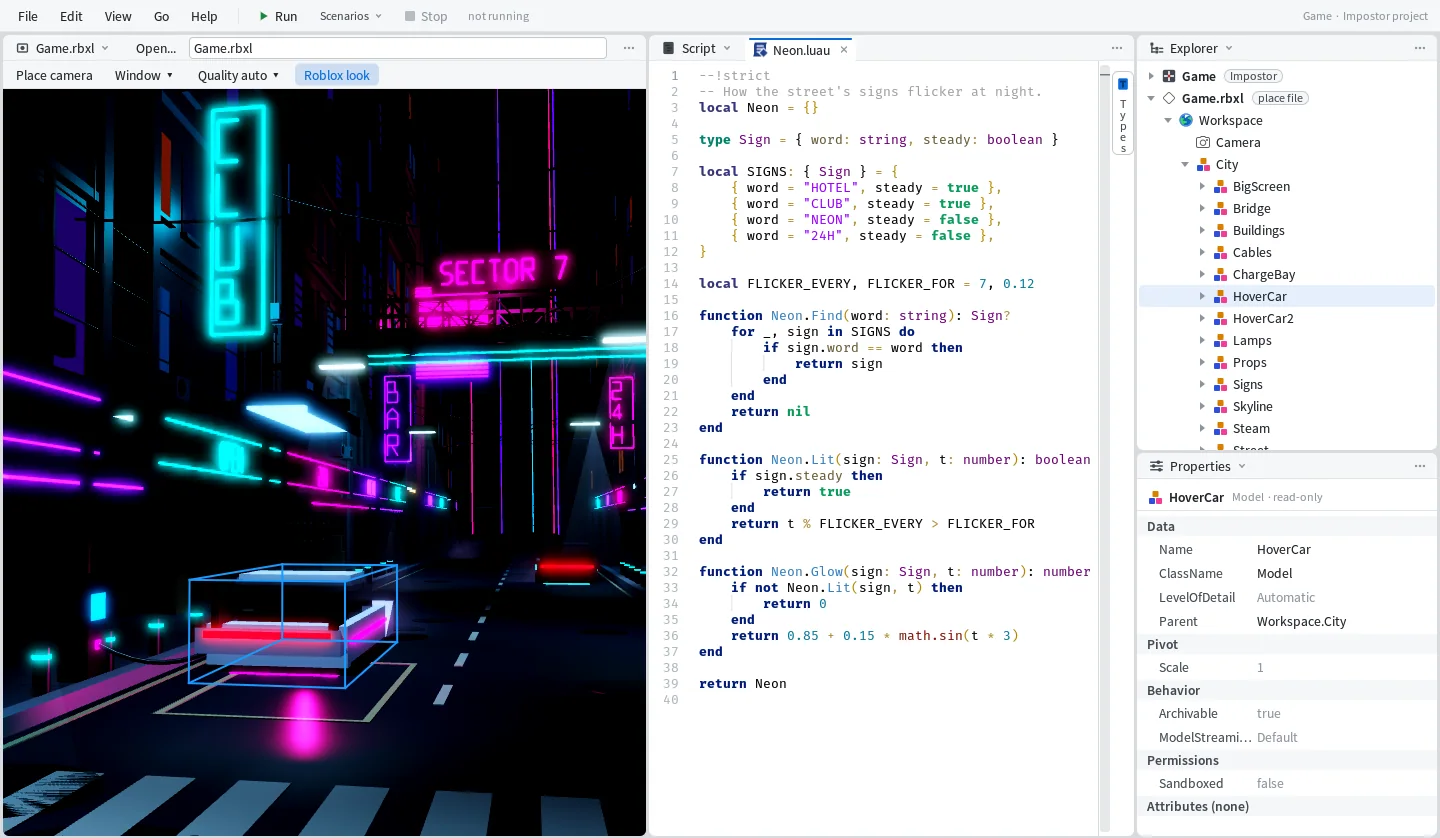
The Roblox View on the left is the 3D view, here with the .rbxl itself open next to the project. On the right the Explorer lists everything in the place and Properties shows whatever you picked. In this shot the parked hover car is selected. The view draws Studio's blue box around it, the Explorer has opened down to Workspace/City/HoverCar, and Properties shows that it's a Model and its Parent, Workspace.City.


The mouse and keys do what they do in Studio:
- Click
- select
- F
- frame
- Mouse wheel
- zoom toward the pointer
- Altdrag
- orbit
Particle emitters, trails and head meshes are drawn too. Change something in Lighting and the view follows while you change it.
The typo, caught before you press Play
When ShotScript checks an Impostor project it reads the place as well, so game and workspace know what's really in your world. Here is that script again:
local hull = workspace.City.HoverCar.Hul

hull.Reflectance = 0.2
And here is what shot check says about it:
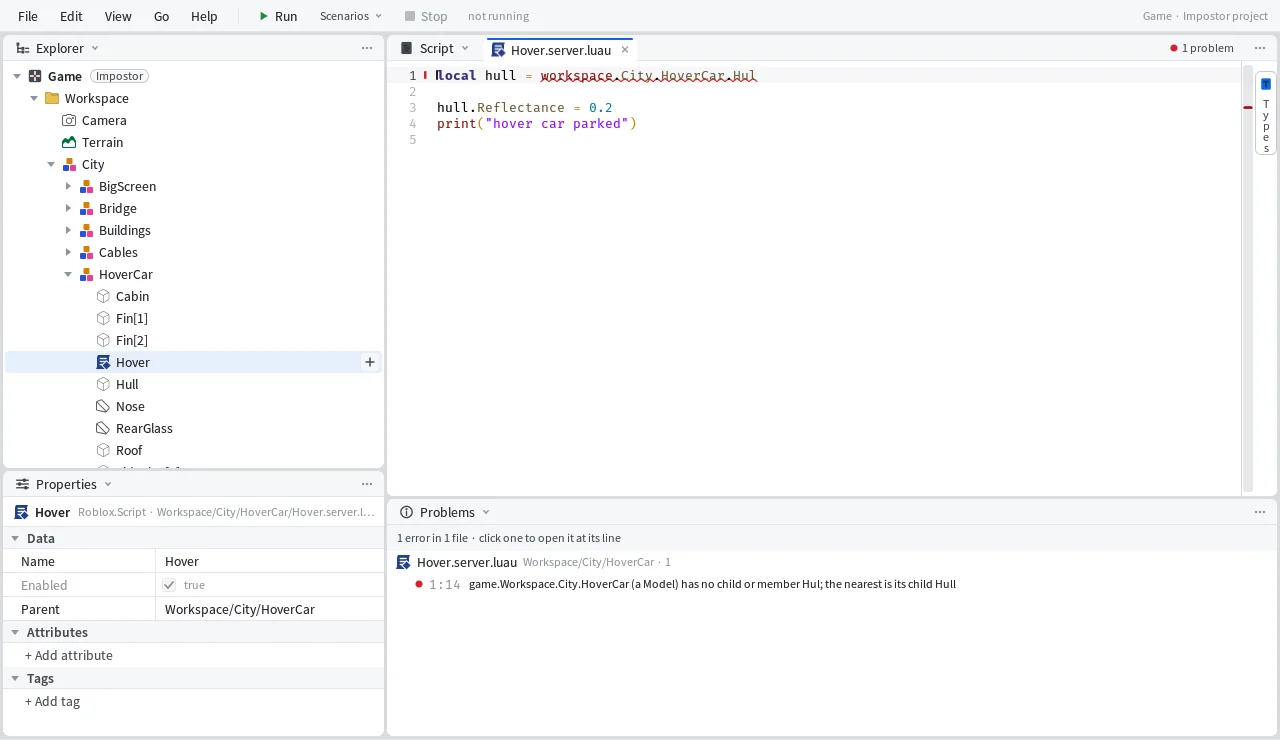
Game.ssp/Workspace/City/HoverCar/Hover.server.luau:1:14 game.Workspace.City.HoverCar (a Model) has no child or member Hul; the nearest is its child HullIn Studio a line like this usually waits until you press Play to break. Here you get the file, the line, the column and the name you meant, before anything runs.
Mime runs the same check while you work. Open the script and HoverCar.Hul has a red line under it, and the message waits in the Problems pane.

Big places stay usable
Large places open with a progress line and a Cancel button, so the window doesn't lock up while a big file loads, and closing one gives the memory back. While you fly around, the view skips parts that are too small to see and draws repeated parts together. When nothing on screen changes Mime doesn't redraw at all, so a big place can sit open all afternoon without using any CPU.
Change it, then send it back
Insert offers the same classes as Studio's Insert Object, except layered clothing and dynamic heads, which aren't in yet. Properties edits the Roblox properties a script can set, and every script opens in the Editor. That works on the services, folders and scripts around the world. The parts in Workspace can be selected and looked at for now, and you change them in Studio.
When you want the place back in Studio:
shot export Game.ssp place.rbxlEvery script goes back to its spot. Particles, gradients, fonts and the settings of services like Players and Chat come back with the place. Export also refuses to write over a file that's already there. Run it a second time and you get:
place.rbxl already exists; shot export never writes over a file (pick another name)We ran the whole loop on a fresh Baseplate project. We exported it, imported the .rbxl again and compared the two projects. The text files matched line for line apart from the instance ids, and the world folders were the same byte for byte. The export took a tenth of a second and the import two tenths.
Mime also became a desktop app of its own this week, with one project per window. The Mime window that docks inside Studio is still there if you'd rather stay in Studio.
Playing the place is the part that's missing. Pressing Play in Mime and running the server and a client without opening Studio is what we're building next.