
 ShotScript
 Explorer keeps working while you play
Press Play in Roblox Studio and ShotScript Explorer stays in its dock, showing the running game. You can select, rename, insert, group, copy, paste and delete there as you would in Studio's own Explorer, and Stop puts the place back the way it was.
The place
We started from a new Baseplate and added two Parts to Workspace, a reddish brown cube named Crate and a blue cylinder named Barrel. In ServerScriptService a plain Script named Hello prints one line, and we left it open in a ShotScript Editor tab.
One side at a time
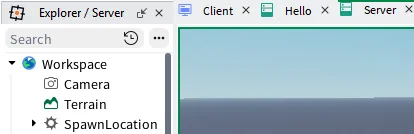
We pressed Play (F5). Studio swapped the place's tab for two new ones, Client and Server, with Hello still open between them. No other window opened, and every dock stayed where it was.
ShotScript Explorer shows one side of the running game at a time, and its header names it, "Explorer / Client" or "Explorer / Server". It follows the tab in front. With Server in front, Workspace held Crate and Barrel as before, and the player's character.

Selection follows Studio
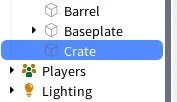
On the Server tab we chose the Select tool on Studio's Home tab and clicked the crate in the game view. ShotScript Explorer opened Workspace and selected Crate's row. A click on Barrel in Studio's own Explorer selected Barrel in ShotScript Explorer too.
On the Client tab, a click in the game view goes to the running game and selects nothing, so we made every change below on the Server tab.

The right-click menu
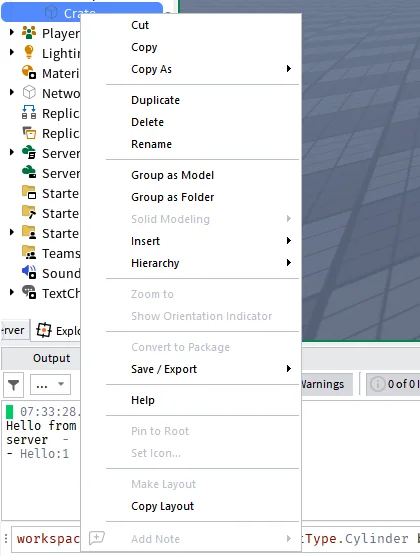
A right-click on Crate opened a menu with every item of Studio's own Explorer menu for it, in the same order, and a few more. The items drawn in grey, such as Zoom to and Pin to Root, are off during Play.

Rename and insert
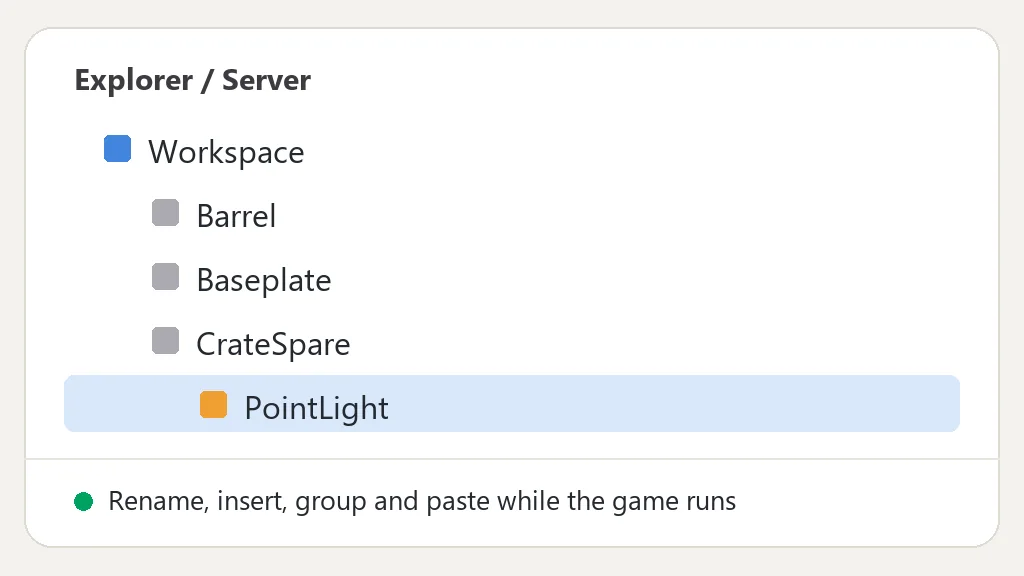
Rename opened a box over the row. We pressed End, typed Spare and pressed Enter, and the Part was CrateSpare in both Explorers. Then Insert > Insert Object... on CrateSpare, with PointLight typed and Enter, put a PointLight under it, selected.


Group and ungroup
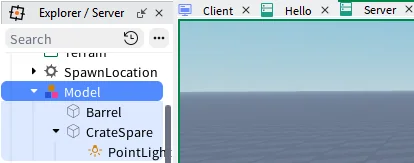
We clicked CrateSpare, Ctrl+clicked Barrel and pressed Ctrl+G. The two Parts went into a new Model, holding Barrel and CrateSpare. Ctrl+U on the Model put both back in Workspace, with both selected.

The keys follow your click
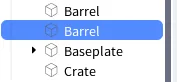
With the caret in Hello's text, we clicked Barrel in ShotScript Explorer and pressed Ctrl+C, then Ctrl+V. The copy, also named Barrel, landed right under the first one and was selected, and Hello's text did not change. Delete then took the copy away.

While the game is paused
Studio's Pause button, the two bars between Play and Stop, pauses the game, and ShotScript Explorer works there too. Copy on Barrel and then Paste Into on Workspace, both from the right-click menu, made a new Barrel in Workspace, and so did Ctrl+C and Ctrl+V.
Stop
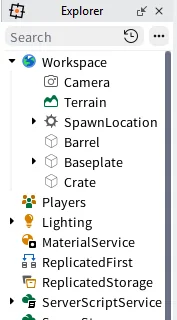
Stop ends the game, and everything made during Play goes with it. ShotScript Explorer's header read "Explorer" again, and Workspace held Camera, Terrain, SpawnLocation, Barrel, Baseplate and Crate, with no CrateSpare, PointLight, Model or copies. Studio's own Explorer showed the same rows.