

 Mime
MimeCheck your game's UI at phone size
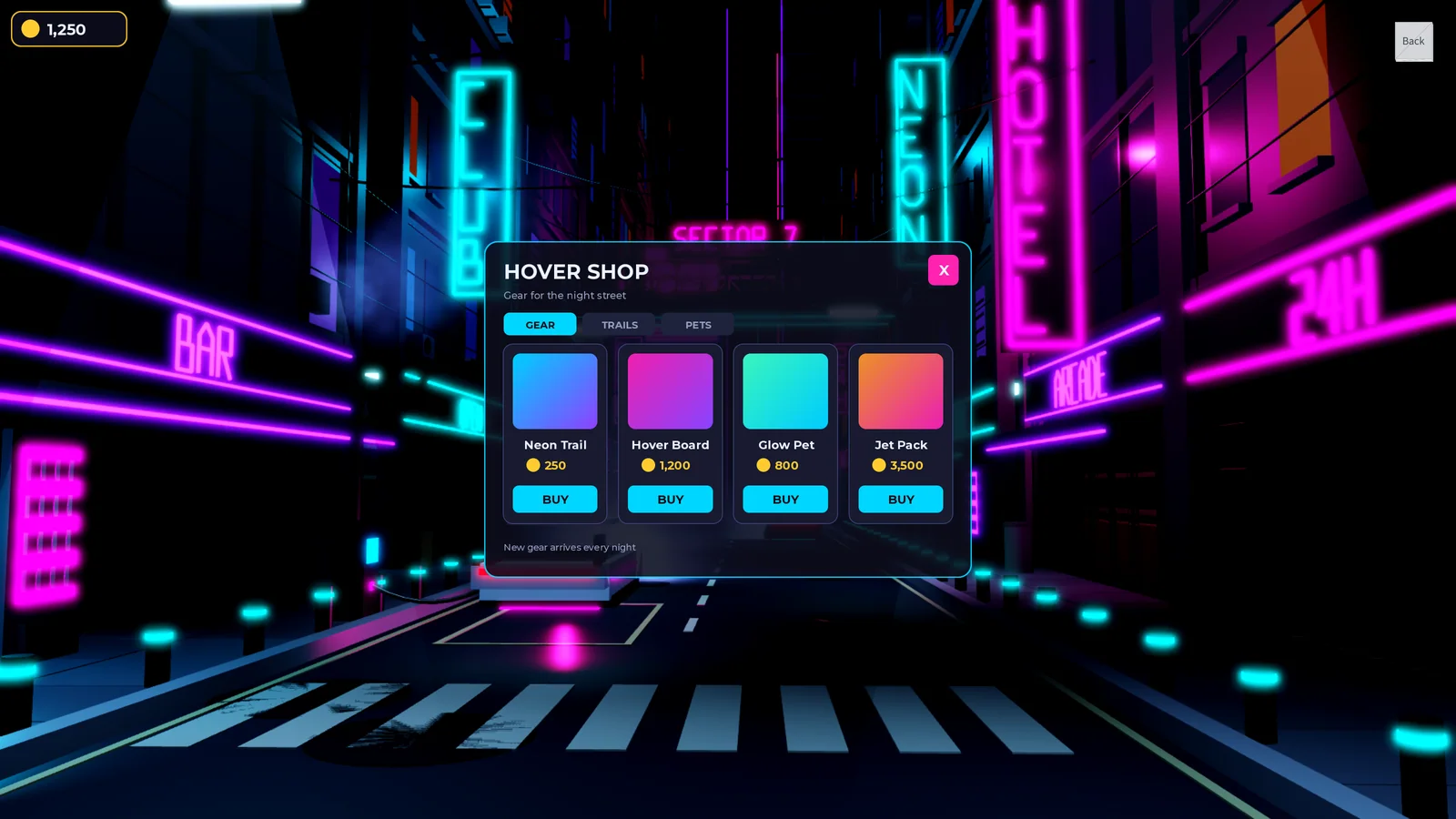
Our test place this time is a night street with a shop for hover gear on top of it. The shop is a panel 640 by 440 pixels in the middle of the screen, with a title, three tabs, four item cards in a grid and a line of small print at the bottom. A coin counter sits in the top left corner. Every size and position in it is in pixels. That's how a lot of Roblox UI starts out, because it looks right on the screen you build it on.
We opened the place file in Mime's Roblox View by typing its path into the box at the top of the pane and pressing Enter. Pressing Enter again later reads the file afresh, which is handy when you've just saved it from Studio. The View draws the ScreenGuis in StarterGui over the world, laid out for a screen size you pick.
At HD 1080 it looks finished.
Picking a device
The device button is in the View's toolbar. Its list includes Window, which follows the window's size, HD 1080 at 1920 x 1080, HD 720 at 1280 x 720, Phone (landscape) at 844 x 390 and Tablet at 1024 x 768. It's Mime's version of the device emulator in Studio, and the choice stays put when you open another file. Below the sizes, Play preview lays the screen out under Roblox's top bar, the way a player sees it in a running game.
Here's the same shop on a phone held sideways:

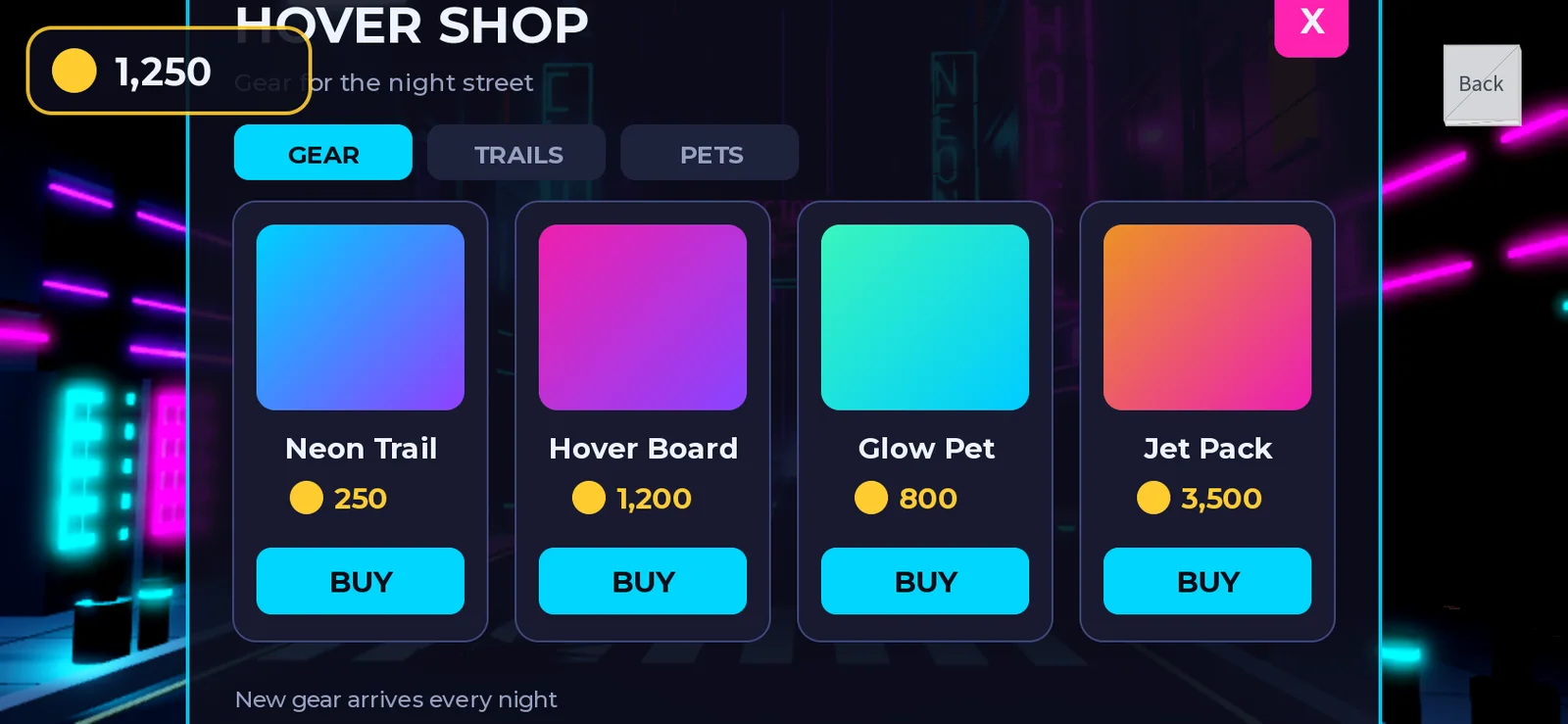
A phone in landscape is 390 pixels tall and the panel is 440, so it hangs 25 pixels off the top and the bottom. The title and the close button are cut, the border is gone at both ends and the small print sits right on the edge. The coin counter is drawn over the shop's subtitle. Tablet and HD 720 were both fine. Only the phone shows any of this.
Changing it in Mime
The View shows a place file as it is on disk. To change things in Mime, we imported the place as a project first. shot import NightShop.rbxl turned it into a Roblox place project in under half a second, with 15 services and 91 instances.
The parts in an imported place's Workspace are view-and-select in Mime, so the street itself stays a job for Studio. The GUI in StarterGui can be edited. Mime draws the project's ScreenGuis over its world as well, redraws them whenever one changes, and took every GUI edit we tried.
So we picked Phone again, found NightShop › StarterGui › Shop › Panel in the Explorer and changed the panel's Size in Properties, where Size and Position are listed under Data. We clicked the value, typed {0.6, 0}, {0.75, 0} and pressed Return, and the status bar said:
StarterGui/Shop/Panel.Size = {0.6, 0}, {0.75, 0} (was {0, 640}, {0, 440})
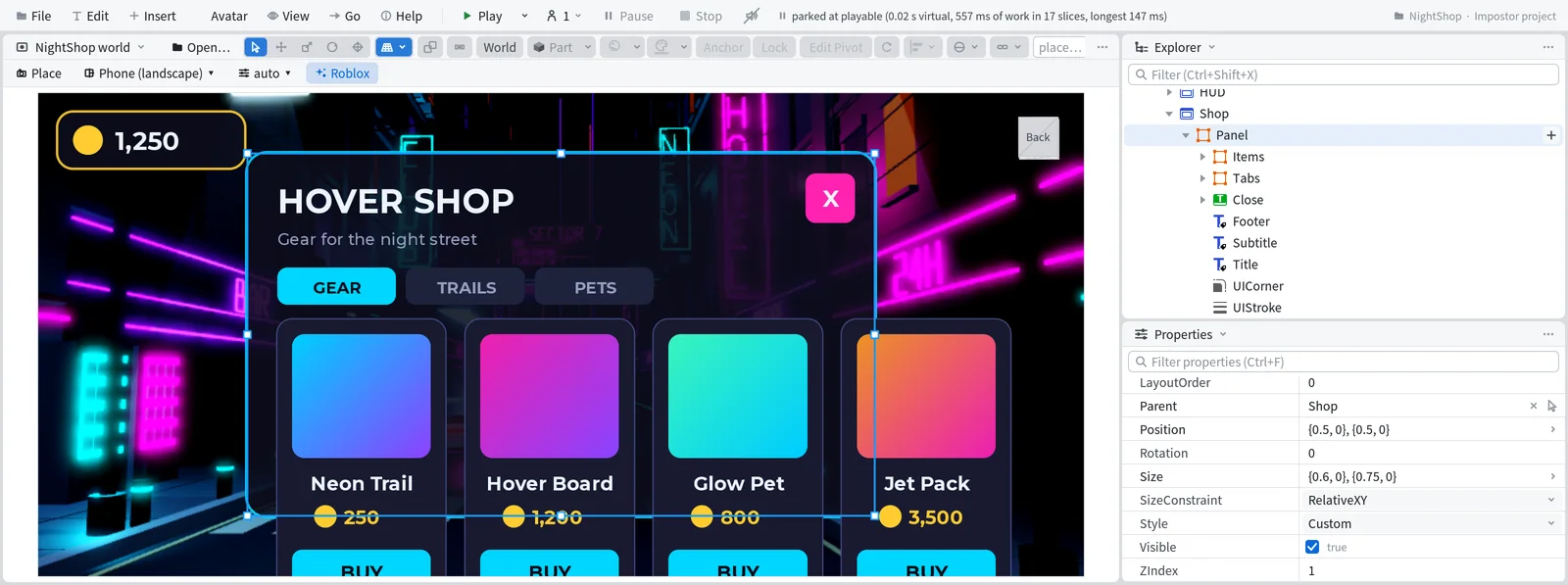
The View redrew straight away. The panel shrank to 506 by 292, but everything inside it is still in pixels, so the 592 pixel grid runs past the panel's right edge and the cards drop off the bottom of the screen. One changed size is enough to see that the whole shop needs the same treatment.
Ctrl+Z put it back with "undid set StarterGui/Shop/Panel Size {0.6, 0}, {0.75, 0} (by properties)", and the View came back to exactly the picture it had before. Each edit goes into the project file as you make it, and there's no separate save.
A shrinking panel also needs to keep its shape, which is what Roblox's UIAspectRatioConstraint is for. The plus button on the Panel's row in the Explorer opens Insert, which offered 295 classes here. We typed "UIAspect" and pressed Return, and Mime said "created StarterGui/Shop/Panel/UIAspectRatioConstraint". It starts with an AspectRatio of 1, and the View turned the panel into a square on the spot. Setting it to 1.4545, which is 640 divided by 440, gave the panel its old shape back.
The whole fix
The rest is the same kind of change on every object in the shop. Each child's size and position went from pixels to Scale, worked out from the panel's 640 by 440. A card 136 pixels wide in the 592 pixel grid became 0.23. We rounded the gaps between cards down to 0.02 so the four cards fit in one row with room to spare.
The panel got a UISizeConstraint with a MaxSize of 640 by 440 next to its aspect ratio, so a big screen still gets the shop at exactly the size it was. Each label got TextScaled, with a UITextSizeConstraint whose MaxTextSize is the label's old TextSize.
We made those changes in a copy of the place file and opened that in the View.

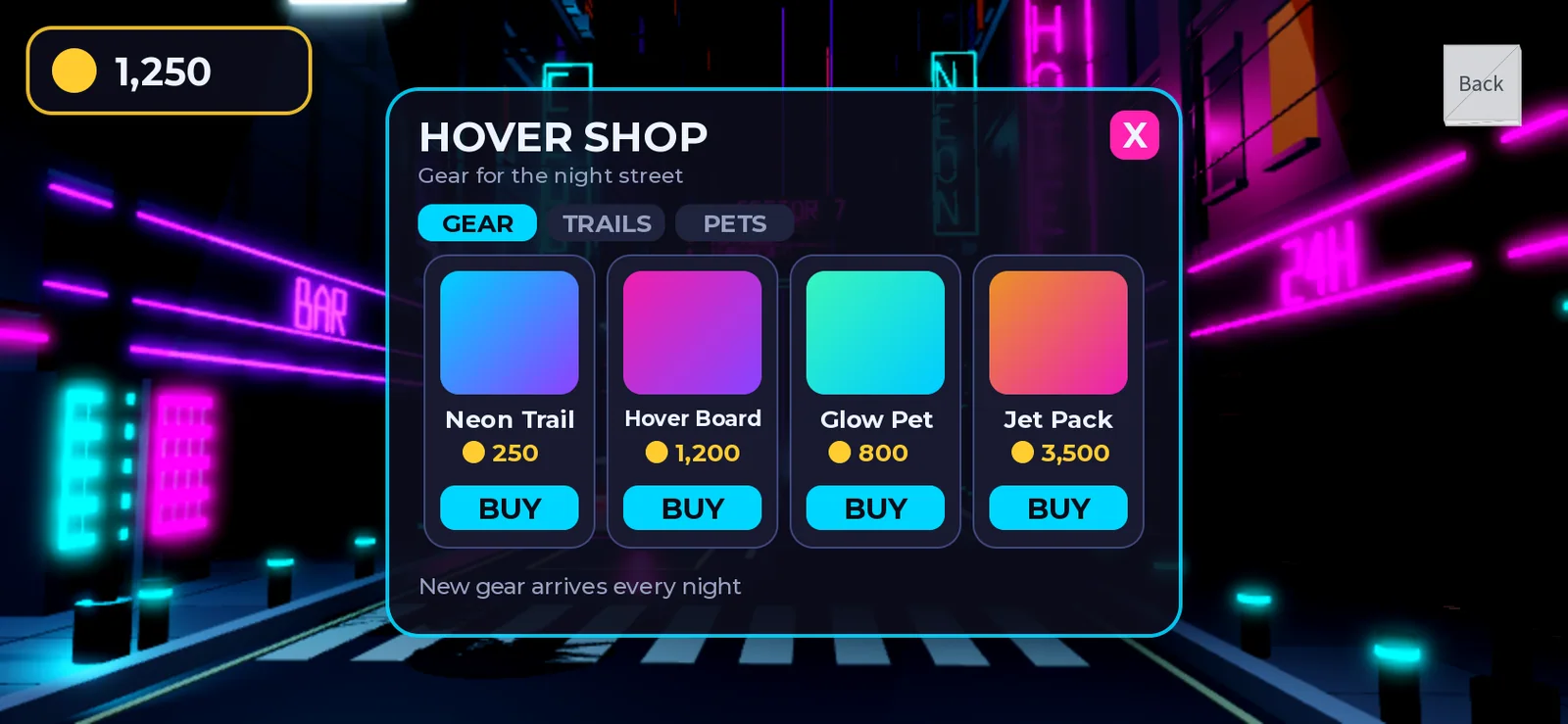
On the phone the shop is now about 425 by 292 and everything is inside it, with the coin counter clear of the panel. At HD 1080 and HD 720 it's the same 640 by 440 as before the fix, because of the cap. A tablet gets something in between, about 614 by 422:

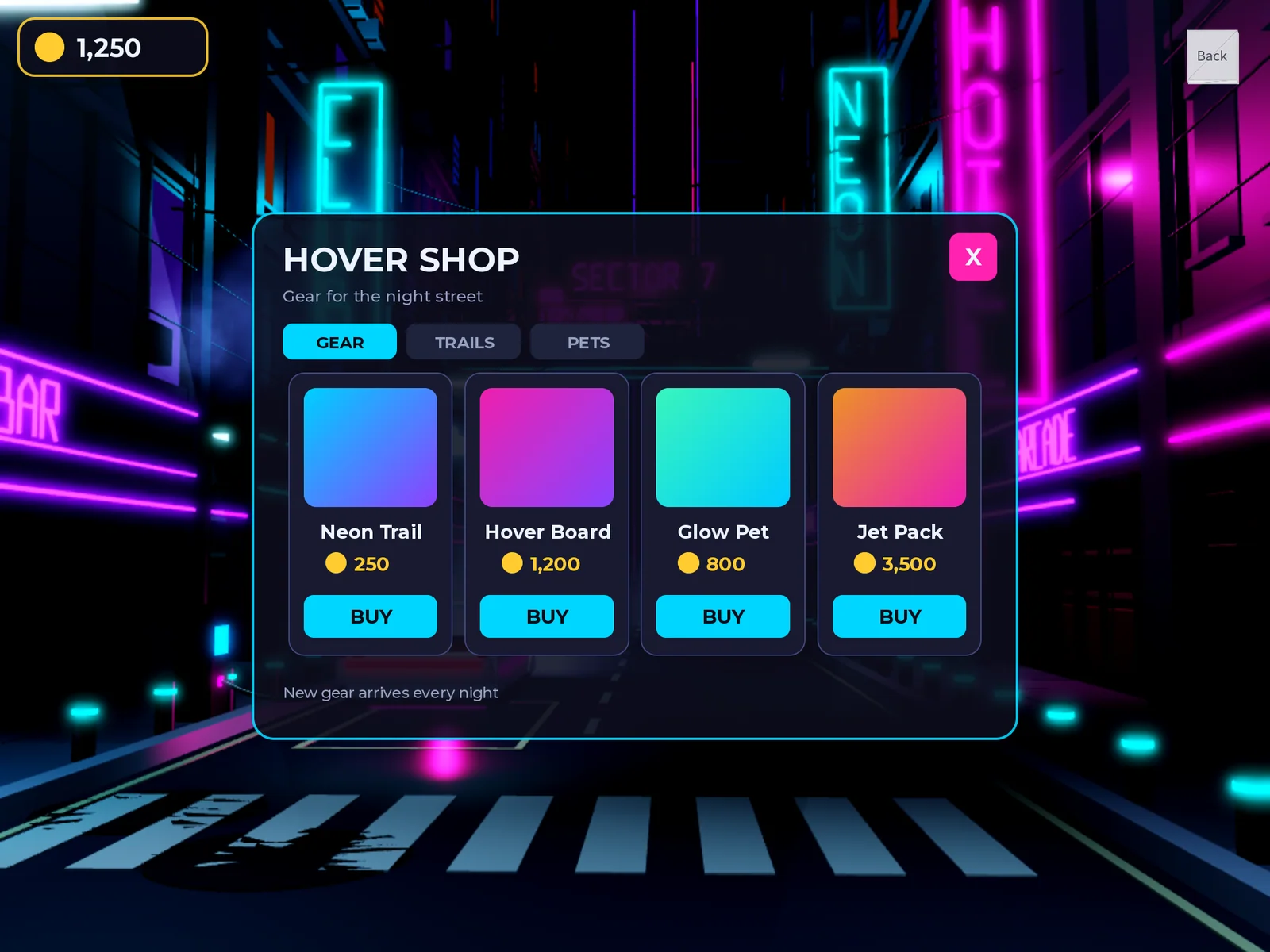
Look at the item names on the phone. TextScaled sizes every label on its own, and "Hover Board" is the longest name, so it comes out smaller than the other three. On a big screen all four sit at their maximum and you'd never notice.
A click on the shop in the View picks the GUI object under the pointer, as Studio does. We clicked between two cards and got Items, the frame that holds them, with a blue box drawn around it. The header of Properties tells you what you have. It read "Panel (Frame)" when we picked the panel in the Explorer, and "Items (Frame, read-only: StarterGui.Shop.Panel.Items)" after the click, because a place file opened in the View can be looked at but not changed.