
The Roblox View
Your place in 3D, drawn the way Studio draws it. Click, frame, orbit and fly around it with the mouse and keys you already use in Studio.
The Roblox View is a pane like the Explorer or the Editor. It shows the world of the project you have open, or any place file, and it shares one selection with the Explorer and Properties.
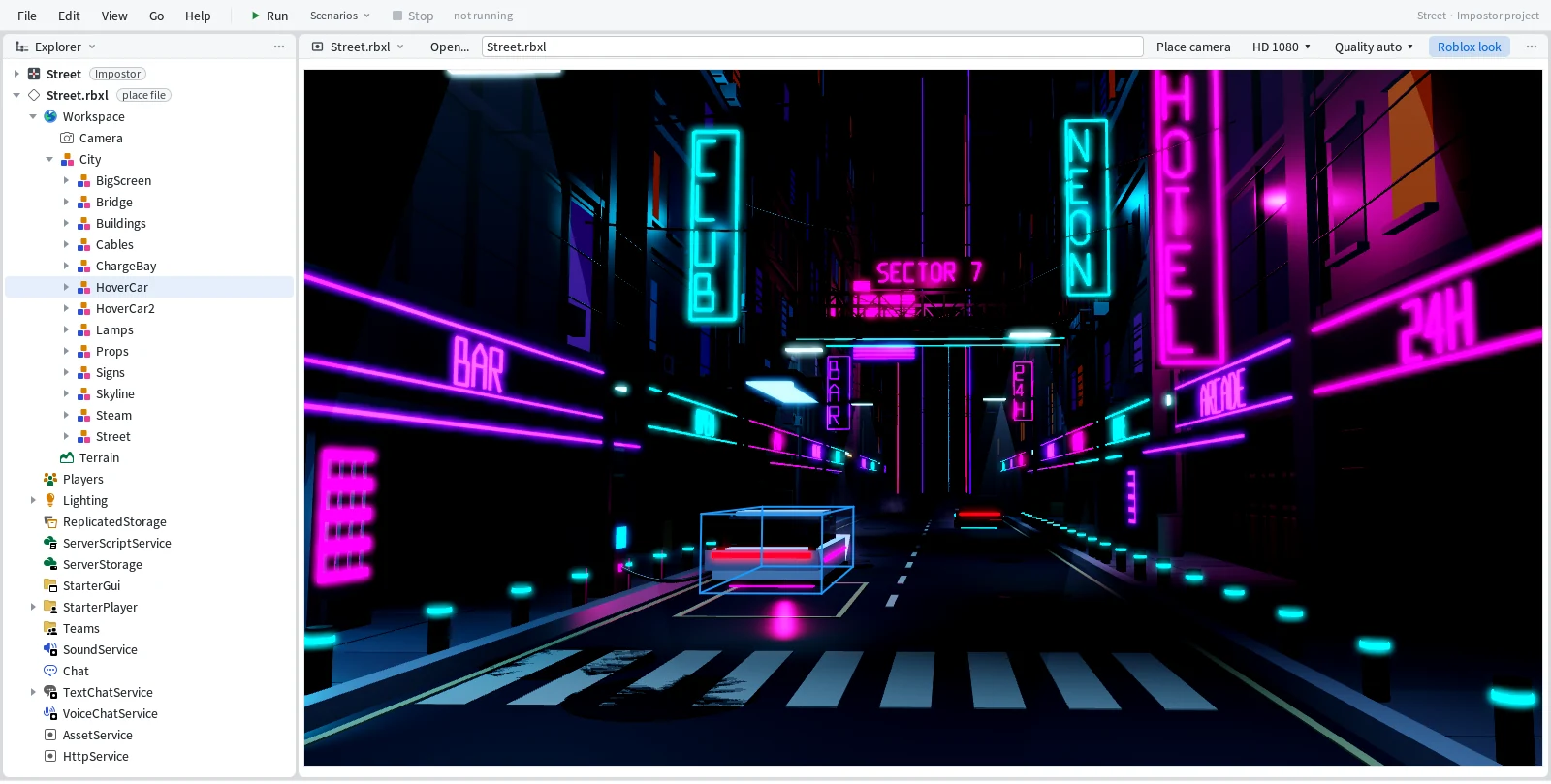
Open a place
Your project's world is one right-click away.
- Right-click the project's top row and pick Open the world in Roblox View. The pane takes the project's name, like "Plaza world", and redraws as you change the project.
- Type a place file's path in the box at the top of the View and press Enter, or click Open... and pick one.
- Drop a
.rbxlfile on the window, and it opens in the View that's already there.
View > Roblox View brings the pane back after you close it.
Get around
If you know Studio's 3D view, you know this one.
Click | select the outermost Model under the pointer, as Studio's Select does |
Alt+click | select the part itself |
F | frame the selection, or the whole place when nothing is selected |
Wheel | zoom toward the point under the pointer |
Alt+drag | orbit the point under the pointer |
Right-drag | look around |
Middle-drag | pan |
W A S D | fly; Q and E go down and up, and holding Shift flies slower |
Home | back to the place's own camera |
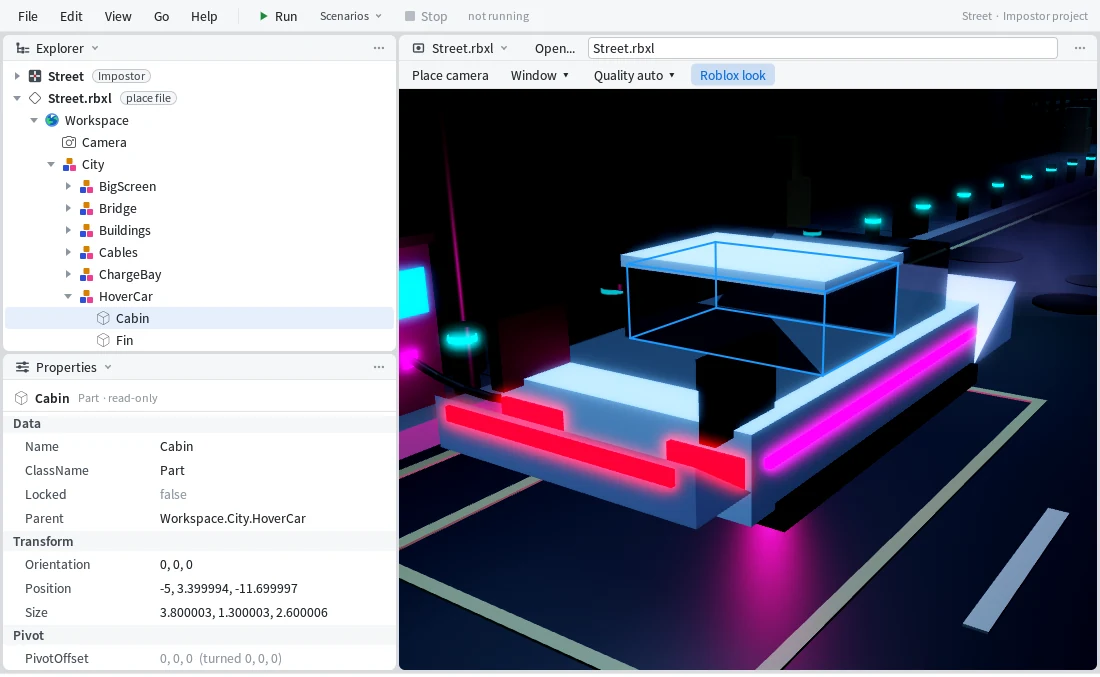
The selection gets Studio's blue box. While the pointer is over the picture, the status bar lists these controls.
Set up the picture
Look at the place through its own camera, at the screen size you're building for.
Place camera | the place's own camera; F switches to Free camera, and Home comes back |
HD 1080 | the screen the ScreenGuis are laid out on: Window, HD 1080, HD 720, Phone (landscape), Tablet and more |
Quality auto | Studio's Edit Quality Level: Automatic (drawn as 21) or Level 01 to Level 21 |
Roblox look | switches to the Stroke look, Stroke Engine's own renderer, and back |
The line under the picture counts what isn't drawn yet in the look you're using.
One selection
Click a part in the picture and the Explorer opens down to it.
A place file you open adds its own rows to the Explorer, under its name with a small "place file" badge. Properties shows what you picked, read-only, with a CFrame as Position and Orientation. Right-click a row for Frame in Roblox View (F).
Change the project, see it
Change Lighting in Properties and the View redraws with it.
Set Lighting's Brightness from 3 to 0.2, and the status bar says "Lighting.Brightness = 0.2 (was 3)" as the world goes dark; Ctrl+Z brings the light back. Insert, Properties and paste work on the services, folders and scripts of a place you imported. The parts in its Workspace are there to look at and select, and Properties says so:
Baseplate is the world's (Plaza.world/Baseplate.rbxm), read only for now: change it in StudioTo bring a place in and send it back, see Roblox places.
Not there yet
- The Roblox look lights a place with its first 16 lights, in the order the place file lists them.
- A project's world draws at 14:30, whatever time of day the place is set to. Open the place file itself in the View to see its own time of day.
Up and coming
- Move, Scale and Rotate on Ctrl+1 to Ctrl+4, with hover outlines and box select in the Roblox View.
- Edit the Workspace of an imported place, and as many lights as Studio draws.