
 ShotScript
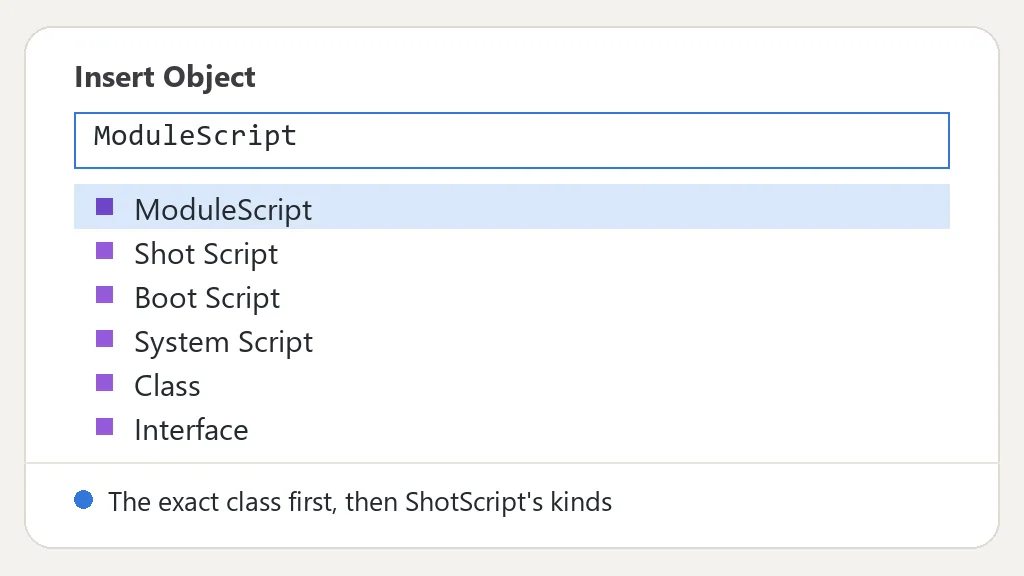
Insert Object puts the exact name first
ShotScript Explorer has its own Insert Object. It lists ShotScript's kinds of script at the top with Roblox's classes under them, and typing narrows the list with the exact class name first. Pick a Roblox class and you get that class as Roblox makes it, with nothing of ShotScript's added.
Opening the list
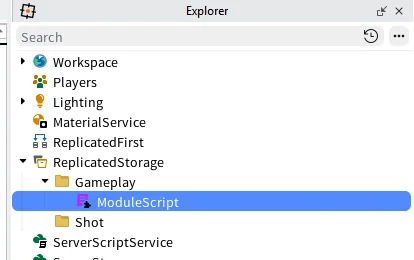
In a test place we opened ShotScript Explorer from Plugins > Shot > Explorer and added an empty Folder named Gameplay to ReplicatedStorage. Then we right-clicked Gameplay and chose Insert > Insert Object.... The list opened over the left half of ShotScript Explorer, with the caret in its search box. Every key below was pressed one at a time.
Before the Shot Folder
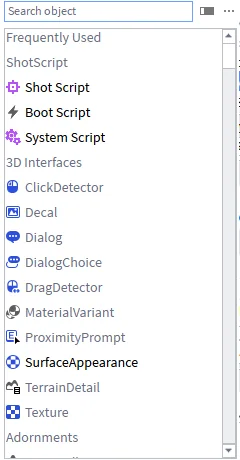
A ShotScript place keeps a Folder called Shot in ReplicatedStorage, and ours had none yet. Without that Folder, the list opens with an empty Frequently Used heading, then a ShotScript heading with only three kinds: Shot Script, Boot Script and System Script.

We closed the list and added the Shot Folder the way we added Gameplay: an empty Folder in ReplicatedStorage, named Shot. From then on it was a ShotScript place, and each list below was opened from Gameplay the same way.
Nothing typed
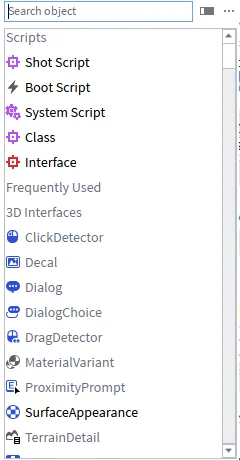
With nothing typed, the search box reads "Search object", and the list starts with a Scripts heading holding ShotScript's kinds: Shot Script, Boot Script, System Script, Class and Interface. Class and Interface weren't in the list before the Shot Folder. The headings Frequently Used and 3D Interfaces come next, with ClickDetector, Decal and Dialog, and the list scrolls on from there.

Typing ModuleScript
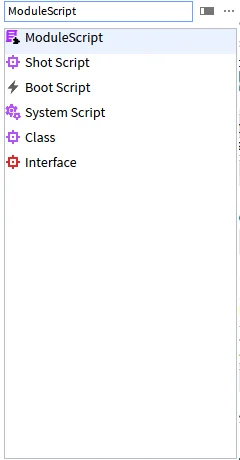
We typed ModuleScript. ModuleScript came first, highlighted, and ShotScript's kinds stayed listed under it.

Typing Part
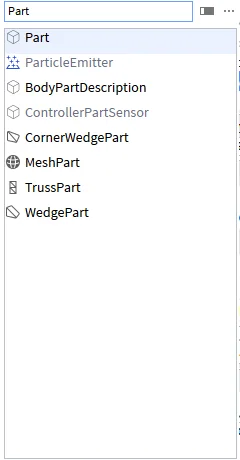
We picked the search text with Ctrl+A and typed Part. Part came first, highlighted, then ParticleEmitter, the other name that starts with Part. After them came the names with Part further in: BodyPartDescription, ControllerPartSensor, CornerWedgePart, MeshPart, TrussPart and WedgePart. ParticleEmitter and ControllerPartSensor are drawn in grey.

A plain ModuleScript
We typed ModuleScript over Part again and pressed Enter. A ModuleScript went into Gameplay with Studio's plain ModuleScript icon, and no ShotScript module was made. Its tab opened by itself in Studio's script editor, with Studio's usual text for a new module:
local module = {}

return module