

 ShotScript
Type a colour as numbers or hex in ShotScript Editor
ShotScript Editor's Properties shows a Color3 as Studio does, three numbers from 0 to 255 in brackets beside a swatch. Click the numbers and you can type a colour over them as three numbers, as hex or as fractions of 1. Click the swatch and a colour window changes the row as you drag.
Lighting's colours
In a small place with a baseplate we picked Lighting in ShotScript Explorer. Ambient and OutdoorAmbient read [70, 70, 70] beside dark grey swatches, and ColorShift_Bottom and ColorShift_Top read [0, 0, 0] beside black ones.

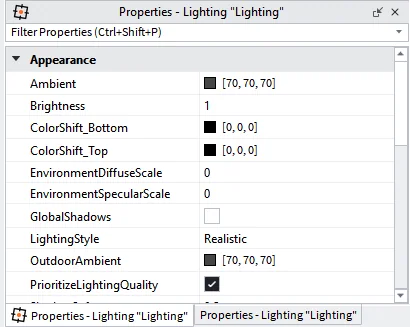
A click on OutdoorAmbient's text opened a box holding 70, 70, 70, the numbers without their brackets, all selected.
Three numbers
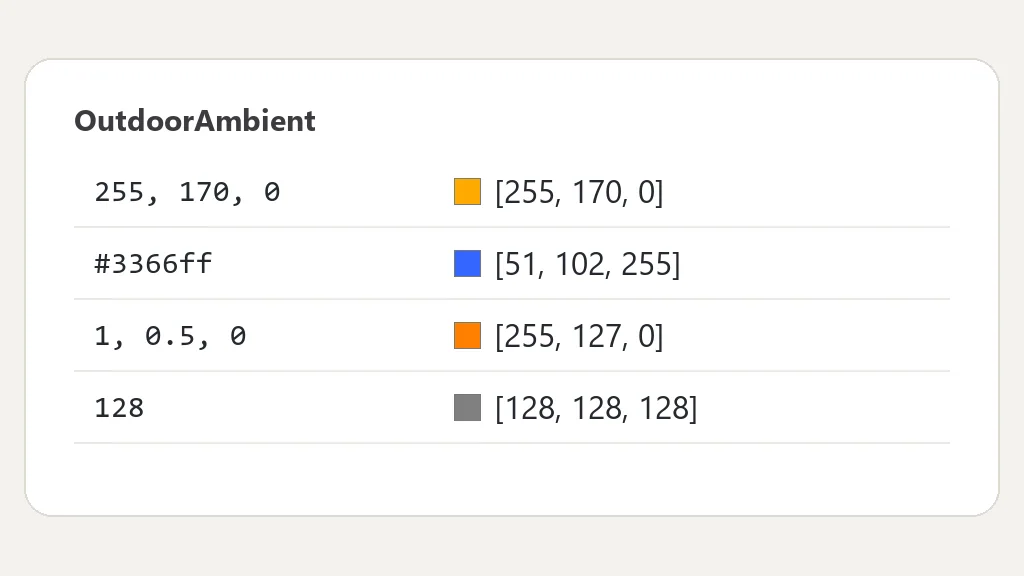
We typed 255, 170, 0 over them and pressed Enter. The row read [255, 170, 0] beside an orange swatch.


Hex, fractions and a grey
We typed each of these over the row in turn and pressed Enter. On the left is what we typed, on the right what the row read.
#3366ff     [51, 102, 255]
3366ff      [51, 102, 255]
1, 0.5, 0   [255, 127, 0]
128         [128, 128, 128]
Hex works with or without its #. Three numbers that are all 1 or less are read as fractions of 1, so 0.5 came out as 127. One number gives a grey, the same number for red, green and blue. A colour's name isn't read: after orange the row still said [128, 128, 128].
The swatch
With OutdoorAmbient back on orange, a click on its swatch opened a Select Color window on the row's colour: Red 255, Green 170, Blue 0, HTML #ffaa00. We dragged in its colour field, and the row followed as we went. With the mouse still down at #47c5ff, Red 71, Green 197 and Blue 255, the row already read [71, 197, 255], and the ground in the view had turned blue.

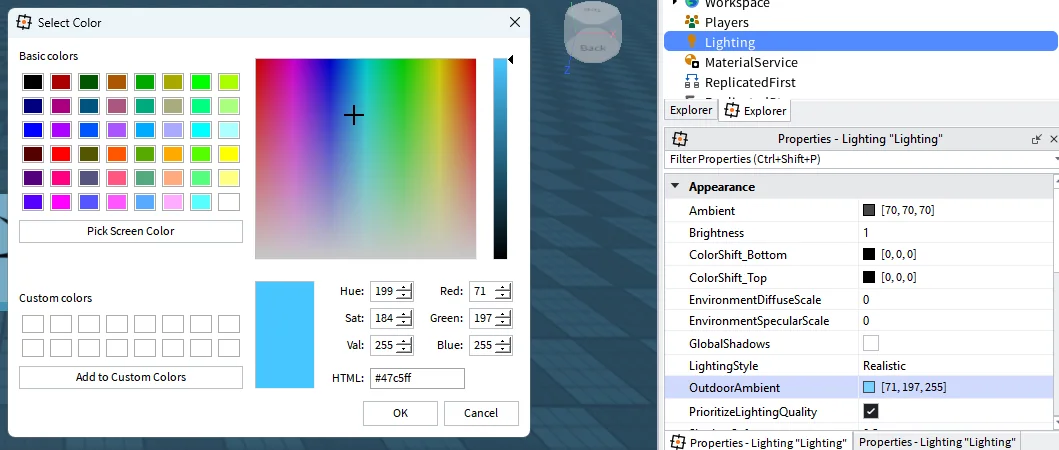
Esc or Cancel takes a drag back. The window closes and OutdoorAmbient returns to the colour it had when the window opened, the same as with Studio's own picker.