
Nodes
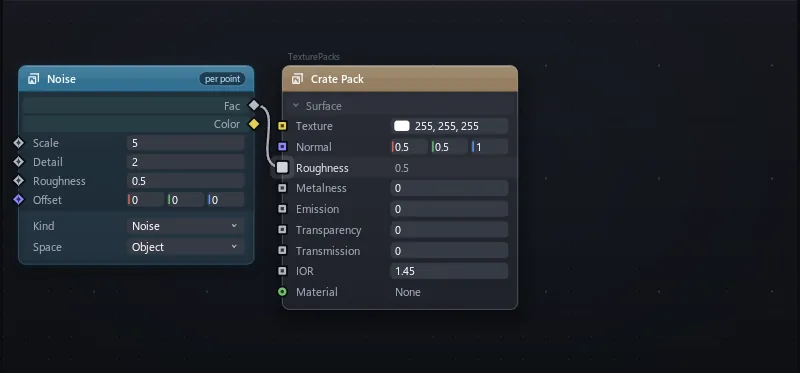
Wire anything to anything. Connect a curve to a camera, noise to a material's roughness, or one picture into another, and see it update live.
The Nodes window shows a node layout: cards joined by wires. Almost any instance in a project can be a card, and one instance can sit in several layouts. Removing a card from a layout leaves the instance where it is.
Plug it in
Drag from an output to an input and the value flows.
A card lists its instance's properties and attributes, each with an input socket; right-click a row and choose Toggle output to give it an output too. A wire joins an output to an input of a matching type and updates it every frame, in Edit mode and in Play mode. If a script writes to a wired property, the wire still wins.
Read the sockets
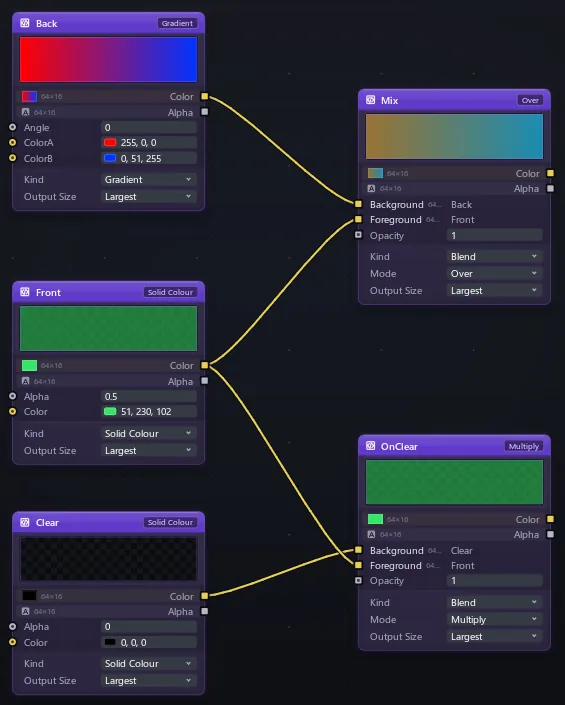
A circle is one value. A square is a whole picture. A diamond is a value at every point of a surface.
A socket's colour says the value's type. A circle wired into a square fills the picture with that value. A picture can't go into a diamond directly; a Project node goes between them.
Pick your node
Do maths, write your own Luau, run a shader on a picture, build a surface or shape a sound, all in the same graph.
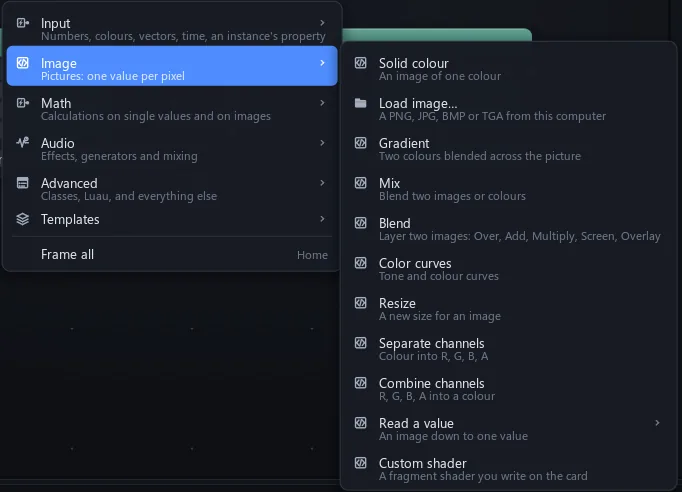
The Add menu (ShiftA or a right-click on the canvas) groups them as Input, Image, Surface, Math, Audio, Advanced and Templates. Image nodes process pictures, surface nodes are worked out at every point of a surface and feed a TexturePack, and audio nodes process sound.
| Any instance | Its properties are sockets, its attributes rows |
| Reactive | Number, vector and colour maths, or your own Luau |
| Class | A typed Luau class drawn as a node |
| Image (GL) | A fragment shader on the card; Grade, Blend, Curves, Resize and more |
| Surface | Noise, Math, Mix, Curves, Project and inputs, into Texture, Normal, Roughness, Metalness, Emission |
| Shader graph | A picture from nodes, like Blender's |
| Audio | Effects, generators, plugins: Audio |
| Templates | Save a node, use it in any project |
Your values are safe
A wire only changes what you see. Cut it and the value you set comes back.
The project file keeps the set value while a wire drives the property. Properties marks a driven value with a teal dot; hover it to see the set value. To keep what the wire made, right-click the property and choose Bake driven value.
Build a surface
Mix noise, pictures and curves point by point across a part.
Select the part, then Properties > Surface > Edit surface nodes. A surface graph looks the same in Solid and in Rendered.