
Render it
Turn the timeline into an MP4: pick a quality and a file, and Stroke path traces every frame, then plays you the result.
In development, not released yet.
You'll learnthe render dialog, MP4 and PNG frames, size and samples, where the files go.
Open the dialog
- Show Showcase in the viewport, or in the Cook window.
- In the top bar, Render > Render video…, or press CtrlF12.
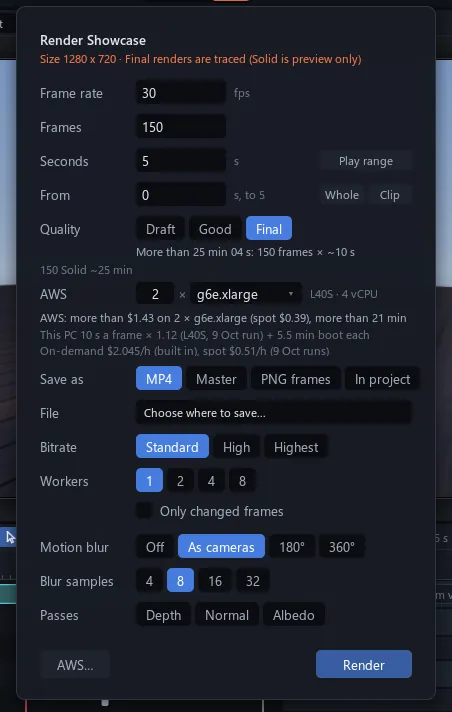
The dialog, Render Showcase, renders the video on show, and first times a few frames to say about how long it will take.
You know this asBlenderRender Animation
Pick the rows
- Quality: Draft is Solid, Good is traced at 24 samples and denoised, Final uses each camera's own settings.
- From and Seconds set what renders: Whole takes the whole video, Play range (on the Seconds row) the range from step 6.
- Save as: MP4 (H.264 with its sound), Master (H.264, ProRes, or WebM with transparency), PNG frames or In project.
- File: where it goes. For an MP4, Bitrate is Standard, High or Highest.
- Motion blur: Off, As cameras, 180 or 360, for this render only.
Watch out With a play range set, the dialog opens on it. Click Whole for the full video.
Size and samples
The frame size is the video's Size, under Video in its Properties with FPS and Length. A new video takes its camera's, 1280 by 720, at 30 FPS.
At Final, each camera's Samples (256 to start) decides how clean a frame gets: more samples, a slower render. ShotCam and CloseCam copied Camera's look when you made them, so theirs already match.
Render and watch
- Leave Quality on Final and click Whole on the From row.
- Set Save as to MP4, click File and name it
Showcase.mp4. - Click Render. Esc stops it, and the file still ends with the frames made.
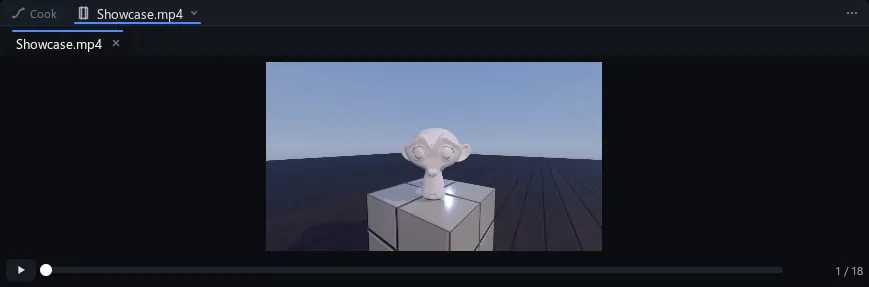
- When it finishes, the MP4 opens in the Renders window: click the picture to play.
- Save the project with CtrlS.
With PNG frames, a numbered picture a frame goes next to the file (Showcase_00012.png is frame 12). In project makes an image sequence inside the project, and opens no Renders tab.
Tip Render > Quick preview (ShiftF12) makes a fast, rough MP4 of the video or play range to check timing.