
Add objects
Build the set: a floor, a pedestal and a model of your own on top, each with a real material.
In development, not released yet.
You'll learnInsert, Parts, an imported mesh, Explorer drags, Properties, materials.
The floor
The empty project's Baseplate becomes the floor.
- In Explorer, click Baseplate and press F2.
- Type
Floorand press Enter.
A pedestal
The top bar's Insert puts a part into the scene you select, else the scene the last viewport showed; its greyed first line says where. The part appears in the air ahead of your view.
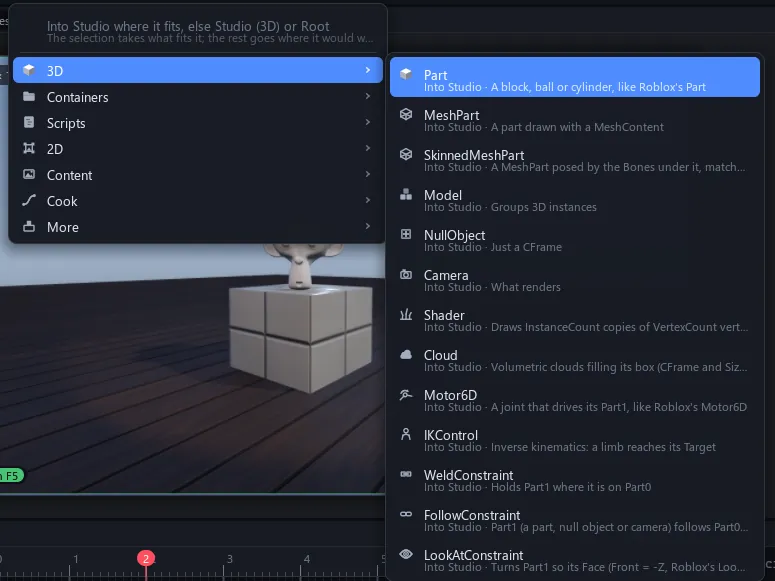
- In Explorer, click Studio.
- In the top bar, choose Insert > 3D > Part.
- Press F2 and name it
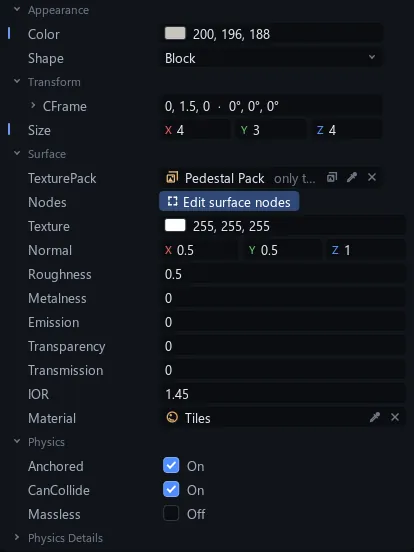
Pedestal. - In Properties, click Size's X, type 4 and press Enter; then Y 3 and Z 4.
- Click CFrame's value, type
0, 1.5, 0and press Enter: it stands on the floor.
A Part is a block, ball or cylinder, picked in its Shape row. In Properties, drag a number to scrub it or click it to type; CFrame takes x, y, z, or x, y, z | rx, ry, rz to turn it too (degrees). Backspace over a row puts it back.
You know this asRoblox StudioPart
Watch out With a part selected, Insert puts the new part inside that part. If Pedestal lands under Floor, drag its row onto Studio.
The Explorer
Drag a row onto another to put it inside; drag it to the line between two rows to reorder. A part draws only inside a scene, so keep the set in Studio.
Your own model
Drop any OBJ, glTF or FBX file on the viewport: it becomes a MeshPart standing where you let go, and the mesh goes into Meshes. The pictures use Blender's monkey, Suzanne (Add > Mesh > Monkey), exported as an OBJ.
- Drag your model file from the desktop onto the top of Pedestal.
- In Explorer, click the new part (named after your file), press F2 and type
Statue. - Too big or small? Press 3 and drag a ball.
No file at hand? Meshes already holds four built-in shapes, Plane, Cube, Sphere and Torus, and a Torus stands in fine.
- In Explorer, click Studio, then in the top bar Insert > 3D > MeshPart.
- Press F2 and name it
Statue. - In Explorer, open Meshes.
- In Properties, click Mesh, then click Torus under Meshes in Explorer.
- Set Size to 3, 3 and 0.9, and CFrame to
0, 4.5, 0.
Tip An OBJ brings its textures when its .mtl file sits beside it. File > Import > Mesh adds a mesh to Meshes without placing it.
Materials
Every project has five sample materials in its Materials folder, under Assets in Explorer: Bricks, Planks, BrushedMetal, Tiles and Dirt. A part takes one in the Material row of its Surface group.
You know this asRoblox StudioMaterialVariant
- Select Floor.
- In Properties > Surface, click the Material row.
- In Explorer, click Planks in the Materials folder.
- Select Pedestal and pick Tiles the same way.
- Press CtrlS.
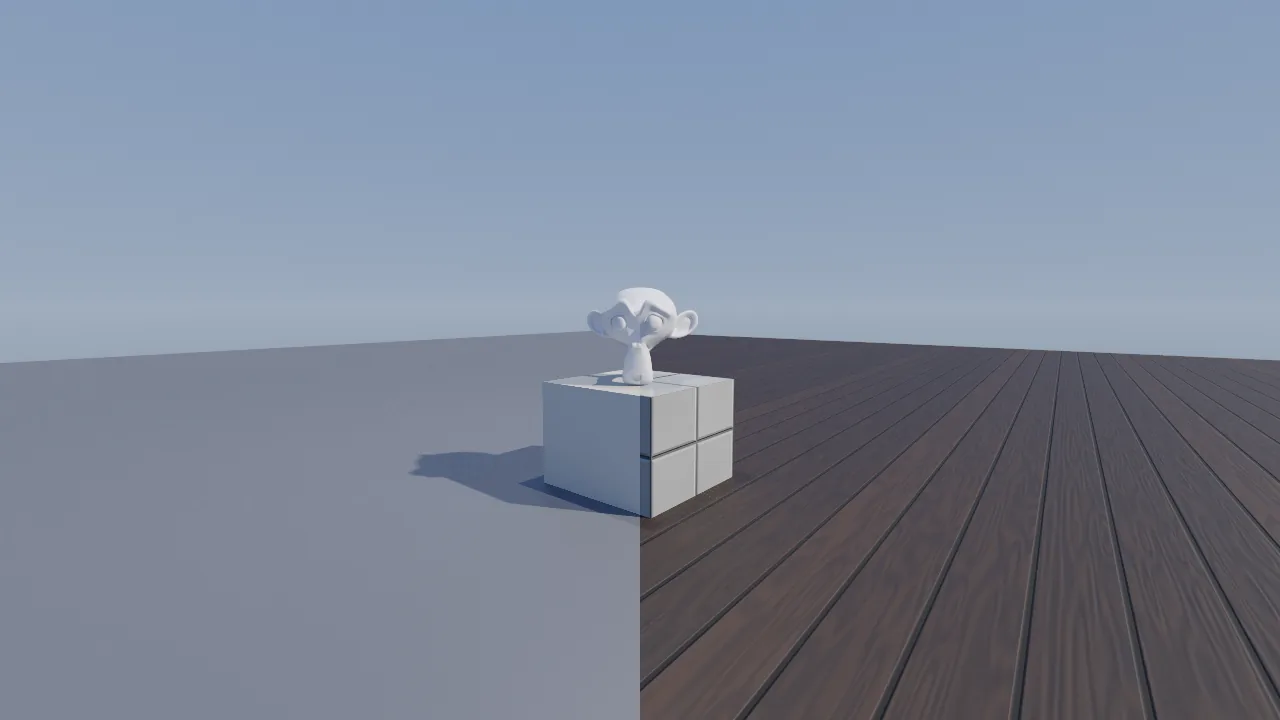 BeforeAfter
The other Surface rows, such as Roughness, Metalness and Emission, each take a value; on a MeshPart, a picture too. The first change gives the part a TexturePack of its own to hold them, such as Pedestal Pack.
You know this asBlenderPrincipled BSDF
More: Scene, Media files.