
Keys and easing
Key a value at two moments and Stroke moves it in between: here the key light fades up, eased in and out.
In development, not released yet.
You'll learna video, the Cook window, keys, moving keys, easing, the Graph Editor and the play range.
A video to key in
Keys live on a video's timeline, so make one first. It opens in the Cook window, Stroke's timeline.
- In the top bar, File > New video.
- In Explorer, rename the new video Showcase (F2).
It runs 5 seconds at 30 frames a second and films the scene through its Camera (step 7 changes that). Your last viewport now shows it.
Each row is a layer. An animated object gets a row, with a sub-row per keyed property. Right-drag the ruler to move the playhead.
Key the key light
I keys the Properties row under the pointer at the playhead; AltI removes the key.
You know this asBlenderInsert Keyframe (I)
Key the end first: once Brightness has a key, setting it at 0 s keys the start by itself.
- Click the Cook window and press ShiftRight three times: the playhead is at 1 s.
- In Explorer, select the SpotLight inside KeyLight.
- In Properties, point at Brightness and press I.
- Click Cook again and press ShiftLeft until the playhead is at 0 s.
- Set Brightness to
0: once a value has keys, every edit keys it. - Click Cook, then press Space to play the fade.
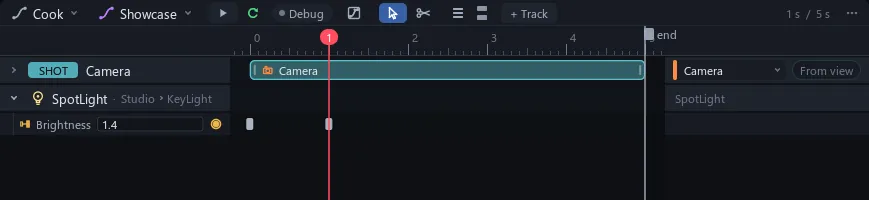
Drag a key to retime the fade; hold Ctrl to snap it to the playhead. Delete removes the selected keys.
Ease it
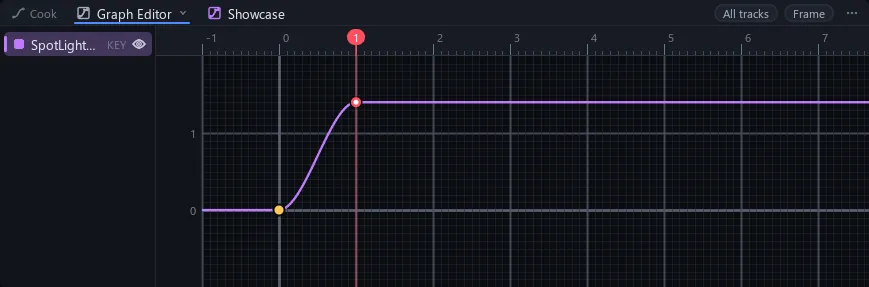
Every new key eases: the value leaves slowly and lands softly. A key's ease shapes the move to the next key.
You know this asAfter Effectskeyframe interpolation, set per key
- In Cook, right-click the key at 0 s > Linear, and play: a steady fade.
- Right-click it again > Hold: the light jumps up at 1 s.
- Right-click it once more > Ease.
See the curve
- In Cook, drag a box around both keys to select them.
- Click the graph icon right of Debug in the Cook header (it has no label).
The Graph Editor opens as a tab beside Cook and draws the selected keys as a curve. F frames the selected keys, Home everything.
Play just a part
The play range is the part that loops. In Cook, ShiftI and ShiftO set its In and Out at the playhead; CtrlShiftX clears it.
You know this asAfter Effectswork area
Tip Playback stutters in Rendered? Time your keys in Solid (ShiftZ), then switch back.