
Light and look
See the path tracer at work, hang a warm key light and a cool one, and give the camera its look.
In development, not released yet.
You'll learnSolid and Rendered, two lights, bloom, the tonemap and the sky.
Solid or Rendered
A new project starts in Rendered, a path tracer: bounced light, soft shadows and gloss, rough at first, then cleaner every pass. Solid is the fast preview.
You know this asBlenderSolid and Rendered shading, but project-wide
- In the top bar, click Solid (ShiftZ) and look.
- Click Rendered to go back: the picture refines, then stops once it is clean.
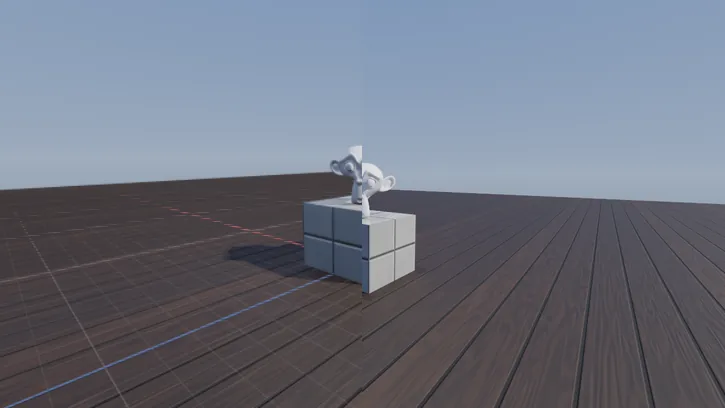 BeforeAfter
The switch covers the whole project. It only sets the preview: renders at Good or Final are traced either way.
Two lights
The starter lamp, Light, makes way for two: a warm key on the right and a cool light on the left. The sun goes down first, so your lights lead. Each light sits inside a NullObject that carries it: move or turn the NullObject and its light follows.
You know this asAfter EffectsNull Object
A new light appears where your view looks, and Insert selects the light inside it, so click the NullObject's row to rename, move or turn it.
- Select Studio and lower Sun Strength to about
2. - In Explorer, select Light and press Delete.
- Right-click Studio > Insert > Light > Spotlight.
- Click the new Spotlight row, the NullObject, and press F2: KeyLight.
- Set its CFrame to
6, 10, 8 | 59, 36.9, 0, aimed at the Statue. - Select the SpotLight inside it, click its Color text and type
255, 184, 115. - Set its Brightness to
4. - Right-click Studio > Insert > Light > Lamp.
- Click the new Lamp row and press F2: CoolLight.
- Set its CFrame to
-6, 4, 5, left of the Pedestal. - Select its PointLight, click its Color text and type
115, 166, 255: cool blue. - Set its Brightness to
6.
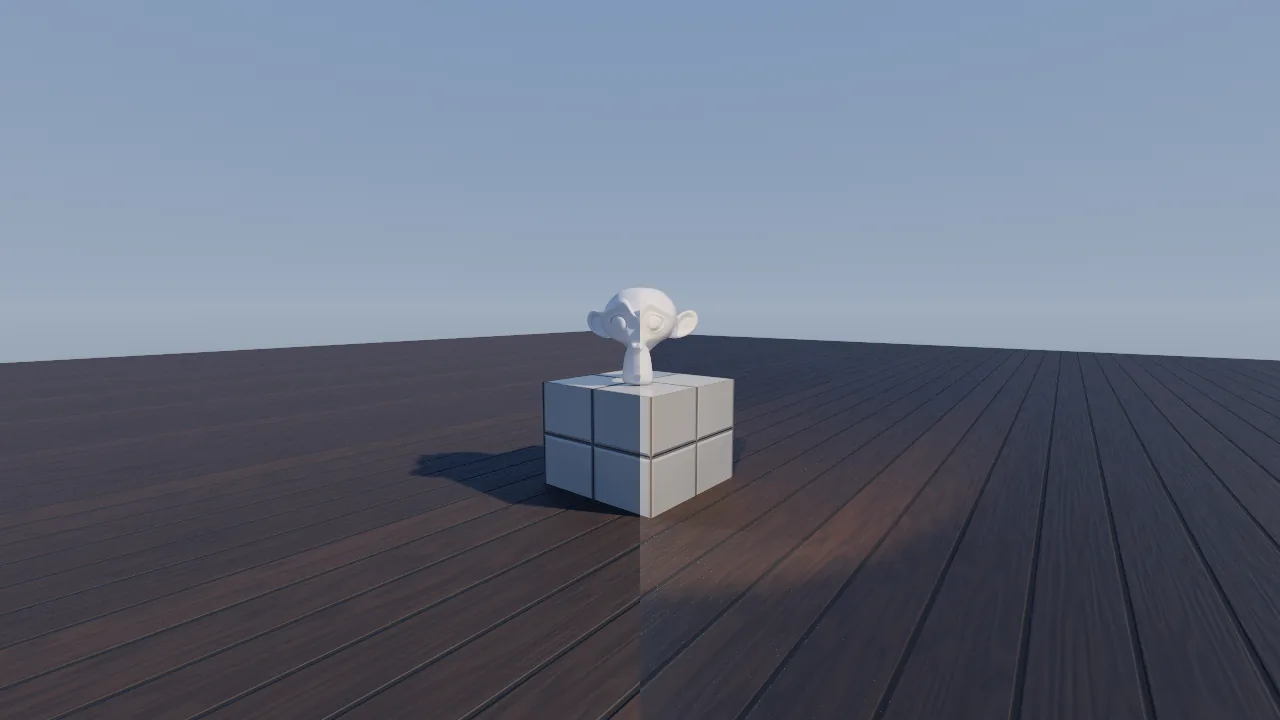 BeforeAfter
Keep the Spotlight's Range 36 and Angle 80 and the Lamp's Range 20. A light fades to nothing at its Range, so one that stands back needs to be brighter. A Color swatch opens a picker instead of numbers.
- Brightness is how strong a light is up close; it fades to nothing at Range.
- Range is how far it reaches, in studs (60 at most).
- Angle is the width of a SpotLight's cone.
Lights show in Solid too, without shadows. In Rendered every light casts them.
Watch out A light shines only directly inside a Part or a NullObject; anywhere else it does nothing.
Give it a look
Bloom, the tonemap and the colour look are settings of each Camera. The sky and the sun belong to the scene.
- Click Free view · Studio at the left of the viewport header and pick Camera.
- Select Camera in Explorer. In Properties, under Bloom, tick Enabled.
- Set Look to Punchy Soft, so strong colours aren't pushed to neon.
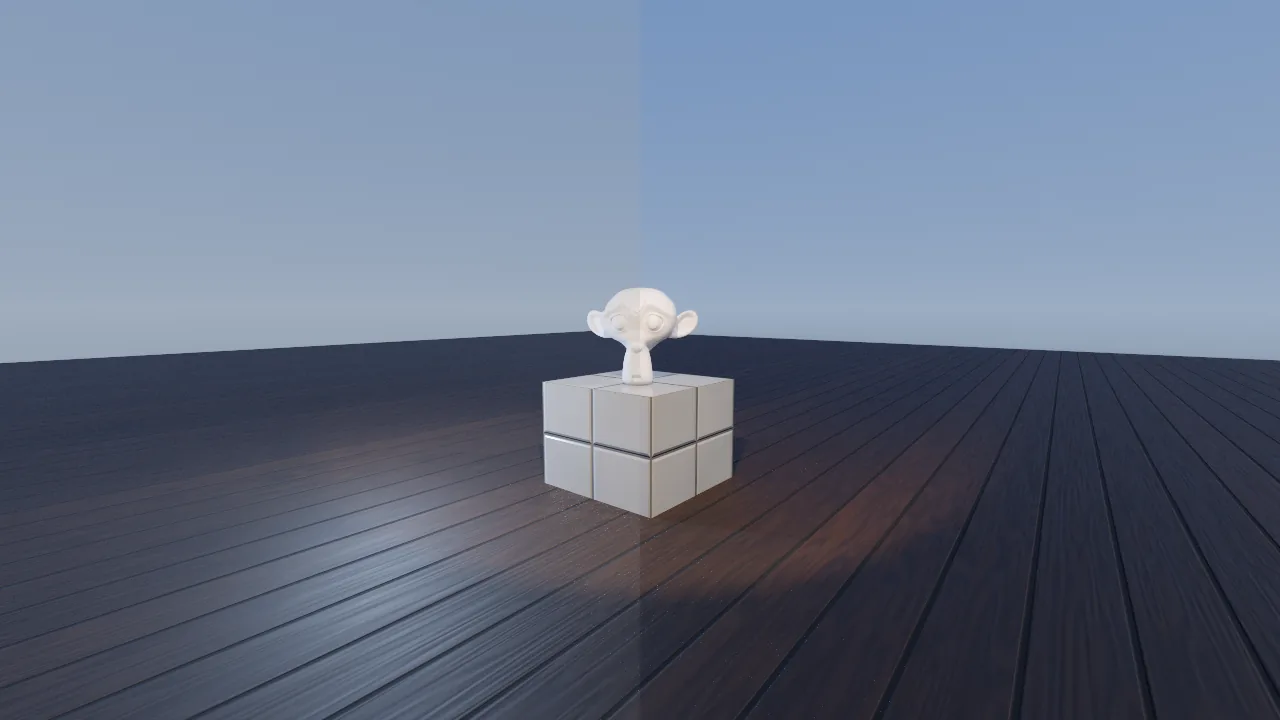 BeforeAfter
- Bloom glows around highlights. Its Threshold of 0.9 keeps the sky out.
- The scene's Sky rows colour the sky; Sky Image takes a panorama that lights the scene too.
The tonemap is AgX unless you pick Neutral, ACES or None, and Exposure brightens in stops.
You know this asBlenderAgX view transform
In Solid the look shows only when the camera's Preview Lighting (under Render) is Sun or Sky; plain Solid ignores Exposure, Tonemap and Look, though bloom still shows.
Tip Rendered slow? View > Preview Res draws every preview smaller, down to 25%. Renders stay full size.