Move around
Fly through the scene like a game, orbit what you picked, and move things with Roblox Studio's handles or Blender's keys.
In development, not released yet.
You'll learnlooking and flying, orbit, pan and dolly, selecting, Move, Scale and Rotate, G and R, undo.
Fly through it
Right-drag to look around, and fly with W A S D; Q and E go down and up. The keys fly the viewport that has focus, so right-drag in it first: a left click on empty ground clears your selection.
You know this asRoblox Studiothe Studio camera
Pick things
A click picks the whole model under the pointer, as in Roblox Studio; hold Alt to pick one part. The Explorer always selects exactly the row you click.
Move, scale, rotate
The viewport's header has Select, Move, Scale and Rotate, on 1 to 4. Move drags arrows along the world axes (sizes and distances are in studs, as in Roblox), Scale pushes one face while the opposite one stays put, Rotate turns rings.
You know this asRoblox StudioMove, Scale and Rotate
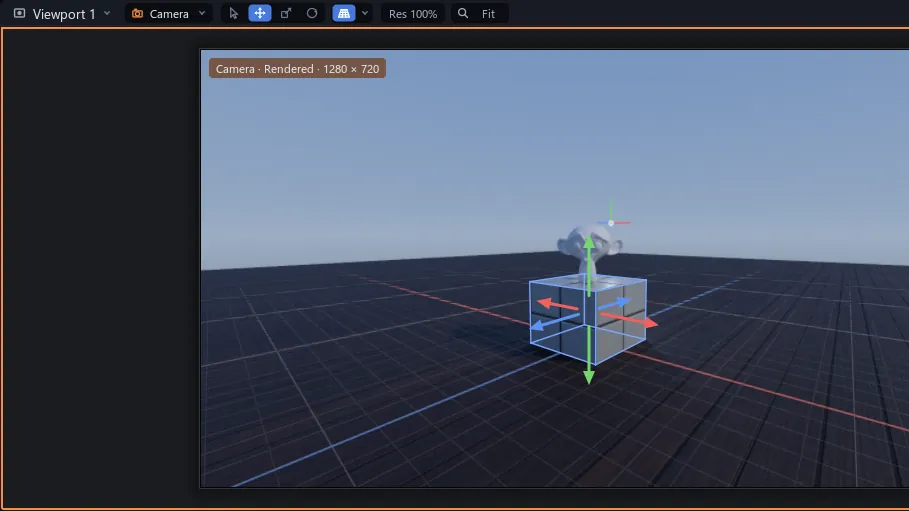
With Select or Move, you can also drag a part itself: it slides over whatever is under the pointer and lands there. Hold Ctrl to snap.
Or Blender's keys
Point at the viewport, press G to grab or R to rotate, and move the mouse. X, Y or Z locks an axis; a click or Enter keeps it, a right-click or Esc puts it back.
You know this asBlenderG and R
Watch out While G or R is moving something, CtrlZ locks the Z axis instead of undoing, and CtrlX and CtrlY lock X and Y the same way. Keep or cancel the move first.
Try it Select the Baseplate, press G, then Z, and move the mouse over the picture. Press Esc to put it back.
More keys: Viewport.